WCAG 3.3.9 Accessible Authentication (Enhanced) Explained in Plain English
WCAG 3.3.9 Accessible Authentication (Enhanced) explained: how it differs from 3.3.8, why image and personal-photo logins fail, fixes and how to test yours.
Table of contents
3.3.9 Accessible Authentication (Enhanced) is the WCAG success criterion that says people should never have to remember, work out or recognize something just to sign in, unless there is an easier way. It tightens its Level AA sibling, 3.3.8, by removing two exceptions that let sites use picture-based tests. This guide explains WCAG 3.3.9 Accessible Authentication (Enhanced) in plain English, with examples, fixes and how to test your login.
The official wording (shortened): “A cognitive function test (such as remembering a password or solving a puzzle) is not required for any step in an authentication process unless that step provides at least one of the following: Alternative: another authentication method that does not rely on a cognitive function test. Mechanism: a mechanism is available to assist the user in completing the cognitive function test.” (W3C, WCAG 2.2)
What Is 3.3.9 Accessible Authentication (Enhanced)?
3.3.9 Accessible Authentication (Enhanced) is a Level AAA requirement under the Understandable principle, new in WCAG 2.2. A cognitive function test is a task that depends on memory, reading skill, calculation or perception: remembering a password, transcribing letters, solving a sum or a puzzle. Signing in should not depend on passing one, unless you also provide:
- An alternative: another way to sign in that needs no such test, or
- A mechanism: a tool that does the hard part, such as a password manager filling in the password.
The difference from 3.3.8 Accessible Authentication (Minimum) is in the exceptions:
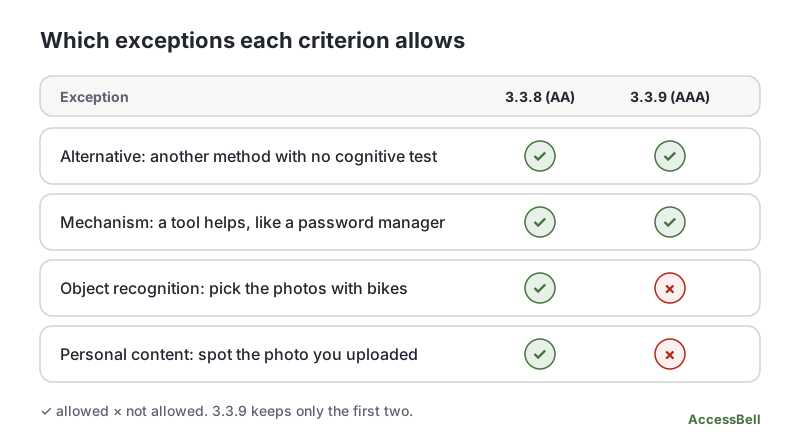
At Level AA, 3.3.8 lets a site ask people to recognize objects in pictures, or to identify their own uploaded content. At Level AAA, 3.3.9 does not. That is why a “select all the squares with a bus” test, or “which of these photos did you upload?”, fails 3.3.9 when it is the only way in.
Why 3.3.9 Accessible Authentication (Enhanced) Matters
Signing in is a gate. If people cannot get past it, nothing else on your site matters. Puzzle-style checks are hard for many people even when the images are clear:
- Someone with a memory or attention disability may not recall which photo they uploaded months ago.
- Someone with dyslexia may struggle with distorted text, and someone with dyscalculia with a sum.
- Someone with low vision or a visual processing difference may not be able to pick out objects in a blurry grid.
- Someone with anxiety or fatigue finds a timed puzzle much harder than a fresh reader would.
Removing the picture exceptions means the sign-in works for people whose difficulty is with recognition itself.
Who Is Affected by 3.3.9 Accessible Authentication (Enhanced)
- People with cognitive, learning or memory disabilities
- People with low vision or perception differences
- People who are blind and cannot complete image challenges
- Older adults, and anyone tired, stressed or in a hurry
How to Meet 3.3.9 Accessible Authentication (Enhanced)
First meet 3.3.8. Then remove any dependence on picture recognition.
Replace picture and puzzle steps
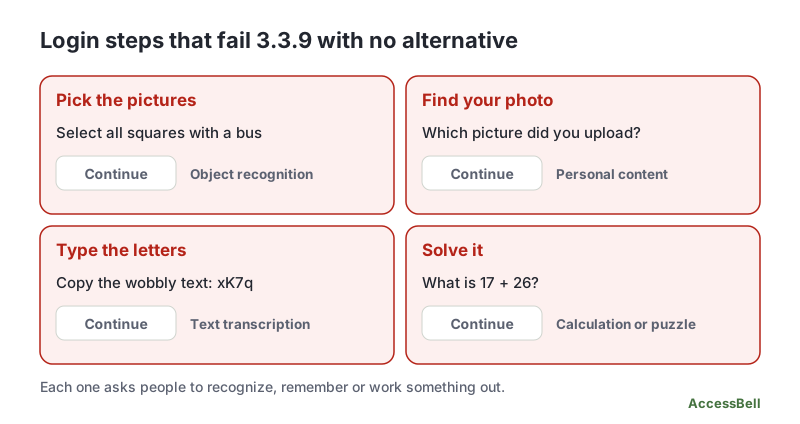
Do not use any of these as the only route in:
- Selecting pictures that contain an object (traffic lights, bicycles, crosswalks)
- Recognizing an image you uploaded earlier, as in “pick your security picture”
- Typing distorted text
- Solving arithmetic, puzzles or “spot the difference” tasks
- Answering security questions from memory
Offer at least one sign-in method with no test
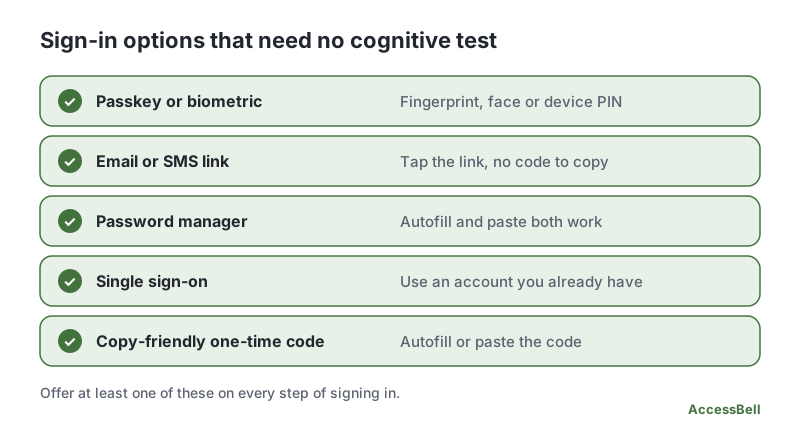
Good options include passkeys and biometrics, a sign-in link sent by email or text, and sign-in with an existing account (single sign-on). Each must work at every step of the flow, including recovery.
Let password managers and paste work
If you keep passwords, do not fight the browser:
<label for="password">Password</label>
<input id="password" name="password" type="password" autocomplete="current-password">
Use the correct autocomplete values, such as username, current-password, new-password and one-time-code, and never block paste on a password or code field. Our guide to 3.3.8 covers one-time codes in more detail, and 3.3.2 Labels or Instructions covers the labels on the fields.
If you must use a CAPTCHA
- Avoid picture-based or distorted-text CAPTCHAs.
- Prefer checks that need no user action, such as invisible risk scoring, or a simple confirmation with an easy alternative path.
- Whatever you choose, make sure a person who cannot complete it has another way in.
How to Test for 3.3.9 Accessible Authentication (Enhanced)
Automated tools cannot judge a whole login flow, so test by hand:
- List every step of signing in, including sign-up, forgotten password, two-step verification and account recovery.
- Mark any step that needs memory, transcription, calculation or picture recognition.
- For each marked step, look for an alternative or a mechanism. Can a password manager fill the field? Can people paste? Is there a sign-in link or passkey?
- Try to sign in without typing or remembering anything. Use a password manager or a passkey, and see whether every step still works.
- Test with a screen reader and the keyboard, since sign-in flows often trap both. See our keyboard accessibility testing guide.
Login fields with missing names or labels are a separate, easy-to-catch failure of 4.1.2 Name, Role, Value, and a free accessibility scan will find those.
Related Success Criteria
- 3.3.8 Accessible Authentication (Minimum): the Level AA version, with four exceptions.
- 3.3.7 Redundant Entry: do not ask for the same information twice in one process.
- 1.3.5 Identify Input Purpose: form fields say what they collect, which helps autofill.
- 2.2.5 Re-authenticating: when a session expires, people can continue without losing data.
Want to check your sign-in page for the issues software can catch? Run a free WCAG scan, or start a 3-day free trial to monitor up to 500 URLs per domain every day.
Frequently Asked Questions
What level is WCAG 3.3.9 Accessible Authentication (Enhanced)?
Level AAA. It is new in WCAG 2.2. Most laws and contracts ask for Level AA, so 3.3.9 is usually optional, but it is a good goal for sites where login is a barrier, such as banking, health and government services.
What is the difference between 3.3.8 and 3.3.9?
3.3.8 Accessible Authentication (Minimum), Level AA, allows four exceptions: an alternative method, a supporting mechanism, recognizing objects, and recognizing content you provided yourself. 3.3.9 Accessible Authentication (Enhanced), Level AAA, keeps only the first two. Picking photos of bikes and spotting your own uploaded picture are no longer allowed as the only way in.
Are passwords allowed under 3.3.9?
Yes, as long as people are not forced to remember and retype them. Let password managers fill the field and let people paste. That counts as a mechanism that helps with the test.
Is a "click all the traffic lights" CAPTCHA acceptable?
Not as the only option. Under 3.3.8 it can pass through the object recognition exception, but 3.3.9 removes that exception. Offer an alternative that needs no puzzle, such as a passkey, an emailed link or a simple checkbox check with no challenge.
Can an automated checker test 3.3.9?
Not really. A tool can find that a password field blocks pasting, but it cannot judge whether a whole sign-in flow needs a cognitive test. Walk through the flow by hand.
How we reviewed this article
- Current version
First published. Checked against the W3C WCAG 2.2 Recommendation and the Understanding documents for 3.3.9 Accessible Authentication (Enhanced) and 3.3.8 Accessible Authentication (Minimum).