WCAG 4.1.3 Status Messages Explained in Plain English
WCAG 4.1.3 Status Messages explained simply: what counts as a status message, how to announce it with role=status or alert, code examples and how to test.
Table of contents
4.1.3 Status Messages is the WCAG success criterion that makes sure screen reader users hear the short updates everyone else sees. Messages like “Added to cart”, “12 results found”, “Uploading: 60%” or “Your changes were saved” often appear on screen without moving focus. If they are not coded as status messages, a screen reader stays silent and the person has no idea anything happened. This guide explains WCAG 4.1.3 Status Messages in plain English, with code examples and how to test your pages.
The official wording: “In content implemented using markup languages, status messages can be programmatically determined through role or properties such that they can be presented to the user by assistive technologies without receiving focus.” (W3C, WCAG 2.2)
What Is 4.1.3 Status Messages?
4.1.3 Status Messages is a Level AA requirement under the Robust principle. It was added in WCAG 2.1. It says that when a status message appears, it must be coded with an ARIA role or property, so assistive technology can announce it without moving focus to it.
What counts as a status message?
WCAG defines a status message as a change in content that is not a change of context and that tells people about one of these:
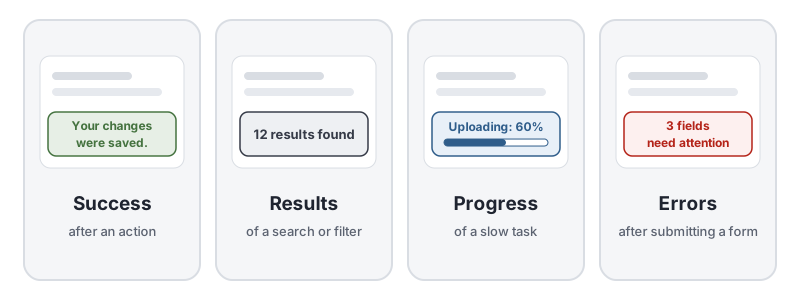
- Success or results of an action: “Saved”, “Message sent”, “Added to cart”, “12 results found”
- A waiting state: “Loading…”, “Searching…”
- Progress of a process: “Uploading: 60%”, “Step 2 of 4 complete”
- Errors: “3 fields need attention”, “That coupon code has expired”
Not everything that changes is a status message. A new page, a dialog that takes focus or content that moves focus to itself is a change of context or receives focus, so 4.1.3 Status Messages does not apply to it.
Why 4.1.3 Status Messages Matters
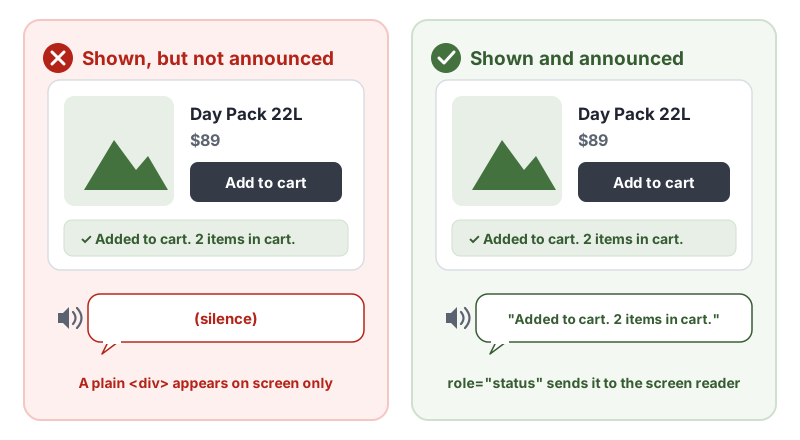
A sighted person clicks “Add to cart” and sees a confirmation pop up in the corner. A screen reader user presses the same button and hears nothing. Did it work? Did they add it twice? They have to go looking for the cart to find out.
Silent status messages cause real problems:
- People repeat actions, such as adding an item twice or submitting a form again.
- People miss errors and assume a form went through.
- People wait without knowing why, because nothing tells them a search or upload is still running.
- People lose their place, if the site tries to fix the problem by moving focus to every message.
Who Is Affected by 4.1.3 Status Messages
- People who are blind and use screen readers
- People with low vision who use screen magnifiers, who may not see a message appear outside the magnified area
- People with cognitive disabilities who use text-to-speech tools
- Anyone who relies on assistive technology to know what just happened
How to Meet 4.1.3 Status Messages
Use role=“status” for most messages
The W3C technique ARIA22, using role=status to present status messages, is the standard fix. Put an empty container with role="status" in the page when it loads, then put the message text inside it when something happens:
<!-- In the page from the start, empty -->
<div id="cart-status" role="status"></div>
// Later, after the item is added
document.querySelector('#cart-status').textContent = 'Added to cart. 2 items in cart.';
Two details matter:
- The container should exist before the message. Screen readers watch live regions that are already on the page. If you create the container and its text at the same moment, many screen readers will not announce it.
- Change the text inside it. Updating
textContentis enough. You do not need to move focus.
role="status" is a polite live region under WAI-ARIA 1.2: the screen reader finishes what it is saying, then reads the message.
Use role=“alert” only for urgent messages
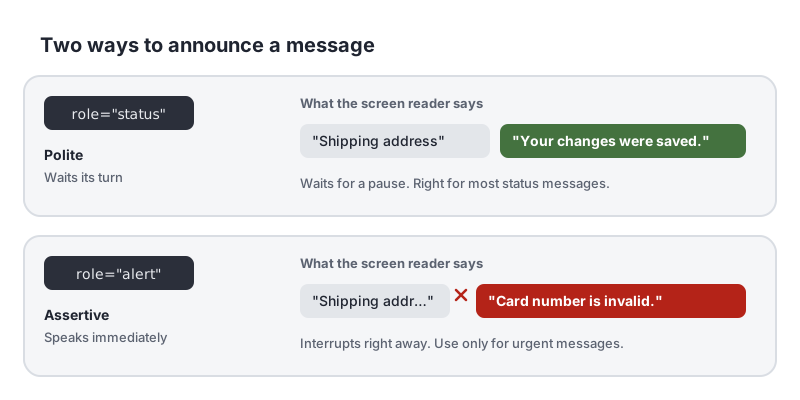
role="alert" is assertive: it interrupts whatever the screen reader is saying. It fits important, time-sensitive messages, such as an error that stops a payment. The W3C technique ARIA19, using role=alert or live regions to identify errors covers using it for errors. Overusing it is tiring, so use role="status" for everything else.
Use role=“log” for a stream of updates
For chat windows, activity feeds and other messages that arrive in order, use role="log", as in the W3C technique ARIA23, using role=log to identify sequential information updates. New entries are announced as they are added.
Keep messages short and clear
- Say what happened in plain words: “Saved” is better than an icon alone.
- Include the useful detail: “Added to cart. 2 items in cart.”
- Do not announce every tiny change. For fast progress updates, announce milestones, such as every 25%, instead of every percent.
How to Test for 4.1.3 Status Messages
The W3C lists missing roles as failure F103, providing status messages that cannot be programmatically determined through role or properties. Automated tools cannot tell which text is a status message, so test by hand:
- List the messages. Walk through key tasks, such as searching, filtering, adding to cart, saving and submitting forms, and note every message that appears without focus moving.
- Turn on a screen reader. Use NVDA or JAWS on Windows, VoiceOver on a Mac or iPhone, or TalkBack on Android.
- Repeat each task with the keyboard. Does the screen reader announce each message, without you moving to it?
- Check the code. Each message should sit inside an element with
role="status",role="alert",role="log"or anaria-liveattribute, and that element should be on the page before the message appears. - Check the tone. Only urgent messages should interrupt.
Our keyboard accessibility testing guide covers the keyboard part of this routine. For a quick reference, see our 4.1.3 Status Messages page in the WCAG library, and the W3C’s Understanding 4.1.3 Status Messages.
Related Success Criteria
- 4.1.2 Name, Role, Value: controls expose their name, role and state to assistive technology.
- 3.3.1 Error Identification: input errors are identified and described in text.
- 3.2.2 On Input: changing a setting does not cause an unexpected change of context.
Want to find the issues software can catch while you test status messages by hand? Run a free WCAG scan of any page.
Frequently Asked Questions
What level is WCAG 4.1.3 Status Messages?
Level AA. It was added in WCAG 2.1, so it applies to any site that targets WCAG 2.1 or 2.2 Level AA. It is not part of WCAG 2.0.
Should I use role="status" or role="alert"?
Use role="status" for most messages, such as "Saved", "Added to cart" or a search result count. It waits until the screen reader has finished speaking. Save role="alert" for urgent, time-sensitive messages, because it interrupts whatever the person is listening to.
Does moving focus to a message meet 4.1.3 Status Messages?
If a message receives focus, it is not a status message under WCAG, so 4.1.3 does not apply to it. Moving focus is sometimes right, for example to an error summary after a failed form submission. For small updates it is disruptive, because it pulls people away from what they were doing.
Can an automated checker test 4.1.3 Status Messages?
Not reliably. A checker cannot tell which pieces of text are status messages or whether they are announced at the right moment. Test with a screen reader. AccessBell lists 4.1.3 in every report for manual review.
How we reviewed this article
- Current version
First published. Checked against the W3C WCAG 2.2 Recommendation, the Understanding document for 4.1.3 Status Messages and WAI-ARIA 1.2.