WCAG 3.3.8 Accessible Authentication (Minimum) Explained in Plain English
WCAG 3.3.8 Accessible Authentication (Minimum) explained: why password recall and CAPTCHAs fail, the four exceptions, login fixes and how to test yours.
Table of contents
3.3.8 Accessible Authentication (Minimum) is the WCAG success criterion that stops logins from depending on memory or puzzles. If signing in requires remembering a password, retyping a code by hand or solving a CAPTCHA, people with memory, reading or cognitive disabilities can be locked out of their own accounts. This guide explains WCAG 3.3.8 Accessible Authentication (Minimum) in plain English: what counts as a cognitive function test, the exceptions, how to fix your login and how to test it.
The official wording: “A cognitive function test (such as remembering a password or solving a puzzle) is not required for any step in an authentication process unless that step provides at least one of the following”: an alternative method, a mechanism to help, an object recognition test, or a test to identify content the user provided. (W3C, WCAG 2.2)
What Is 3.3.8 Accessible Authentication (Minimum)?
3.3.8 Accessible Authentication (Minimum) is a Level AA requirement added in WCAG 2.2. It sits under the Understandable principle, in the guideline “Input Assistance”. It covers every step of signing in: the login form, two-step verification, security questions and CAPTCHAs.
A cognitive function test is any task that asks people to remember, transcribe or work something out. Remembering a password, typing characters from a distorted image, solving a sum and copying a code from one device to another are all cognitive function tests.
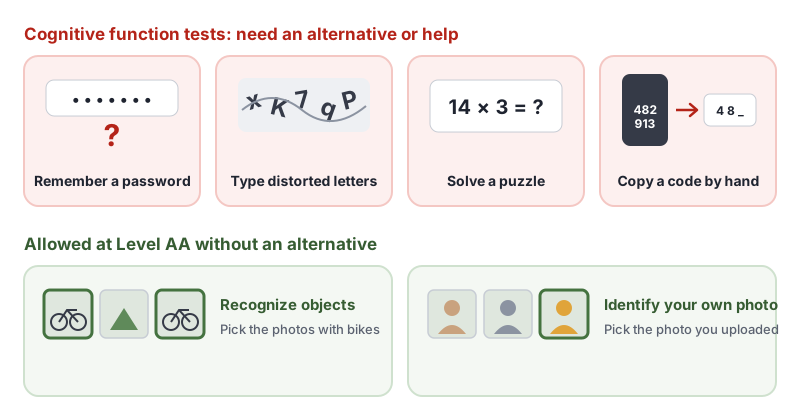
A step can include a cognitive function test only if it also offers at least one of these:
- Alternative: another way to sign in that does not rely on a cognitive function test, such as an email link or a passkey.
- Mechanism: something that helps people complete the test, such as a password manager filling in the password, or being able to paste.
- Object recognition: the test asks people to recognize objects, such as “select the photos with bikes”.
- Personal content: the test asks people to identify an image, video or audio clip they gave the site earlier.
Why 3.3.8 Accessible Authentication (Minimum) Matters
For many people, remembering passwords and copying codes is hard. For some, it is impossible without help:
- People with memory impairments, including from brain injury or dementia, may not recall passwords or security answers.
- People with dyslexia or dyscalculia can find it very hard to copy letters and numbers accurately, or to solve sums.
- People with cognitive or learning disabilities may not be able to solve puzzles within the time a CAPTCHA allows.
- People who cannot read distorted text because of low vision are blocked by text CAPTCHAs.
Locked-out users cannot reach their bank, their health records, their benefits or their shopping. A login that blocks password managers or pasting pushes people towards weak, reused passwords, which is worse for security too.
Who Is Affected by 3.3.8 Accessible Authentication (Minimum)
- People with memory impairments
- People with dyslexia, dyscalculia and other learning disabilities
- People with cognitive disabilities
- People with low vision who struggle with distorted text
- Anyone who relies on a password manager to stay secure
How to Meet 3.3.8 Accessible Authentication (Minimum)
Let password managers and paste work
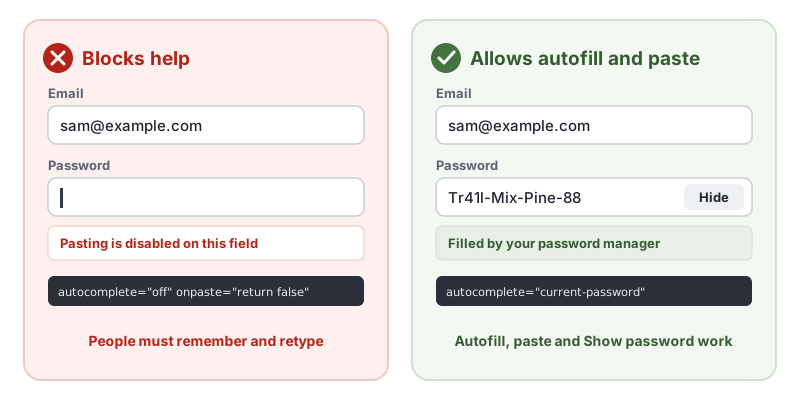
The simplest fix for a password login is not to get in the way. Password managers fill in the email and password, so nobody has to remember them. Mark up the fields with the right autocomplete values and do not block paste:
<form method="post" action="/login">
  <label for="email">Email</label>
  <input id="email" name="email" type="email" autocomplete="username">

  <label for="password">Password</label>
  <input id="password" name="password" type="password" autocomplete="current-password">
  <button type="button" aria-pressed="false" aria-controls="password">Show password</button>

  <button type="submit">Sign in</button>
</form>
- Use
autocomplete="username"andautocomplete="current-password"on the login form, andautocomplete="new-password"when people create a password. - Never block paste with
onpaste="return false"or similar scripts. - Offer a Show password button, so people can check what they typed.
- Keep the username and password on one page, or make sure password managers can still fill a two-step form.
Offer a sign-in method without a memory test
Giving people a way in that needs no memory at all is the most inclusive option:
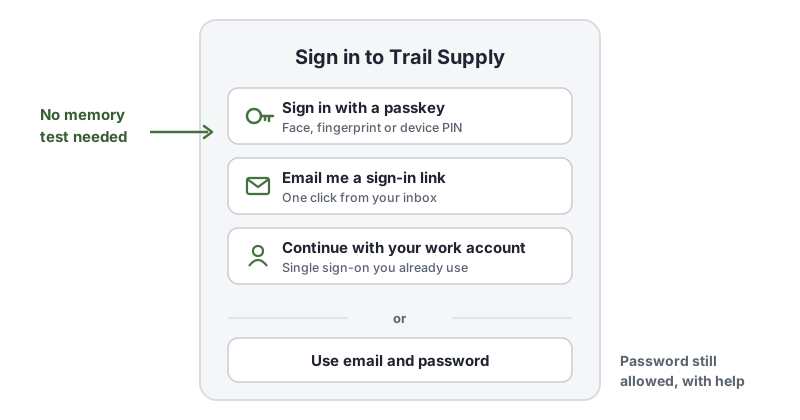
- Passkeys use the device’s face, fingerprint or PIN unlock, based on the W3C’s Web Authentication standard.
- Email sign-in links send a one-time link to the person’s inbox. This is the W3C technique G218, email link authentication.
- Single sign-on lets people use an account they are already signed in to, such as their work account.
Make one-time codes easy to enter
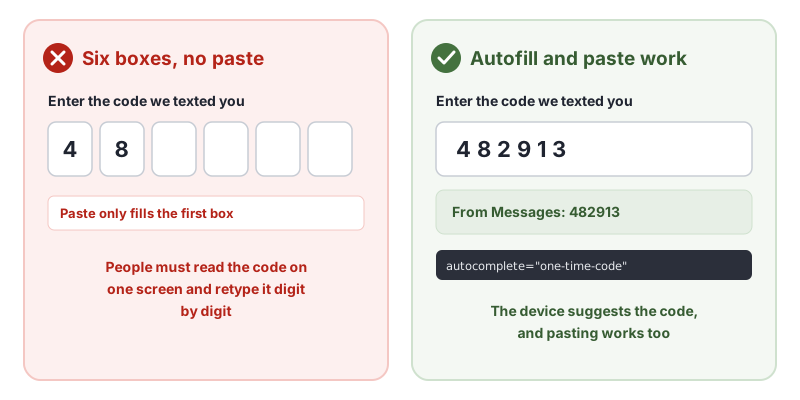
Two-step verification is fine, but typing a code from a text message by hand is a transcription task. Let the device fill it in, and let people paste it:
<label for="code">Enter the code we texted you</label>
<input id="code" name="code" inputmode="numeric" autocomplete="one-time-code">
If you must use separate boxes for each digit, make sure pasting the whole code fills every box.
Replace text and puzzle CAPTCHAs
A CAPTCHA that asks people to type distorted text or solve a sum is a cognitive function test. Options that meet 3.3.8 Accessible Authentication (Minimum) include:
- Bot detection that runs in the background, with no task for the person.
- A checkbox-style check that only asks for a challenge when something looks suspicious.
- An object recognition challenge, such as picking photos of bikes. This is allowed at Level AA, but it can still be hard for some people and fails the AAA version, 3.3.9.
Avoid memory-based security questions
“What was the name of your first school?” is a memory test. If you use security questions for account recovery, also offer a recovery email or another method that does not depend on memory.
How to Test for 3.3.8 Accessible Authentication (Minimum)
Automated checkers cannot judge a login flow. In our test of 10 accessibility checker tools, a sign-in form that required typing CAPTCHA characters, with no alternative, was not flagged by any of the ten. Test by hand, on every step of sign-in, sign-up, password reset and two-step verification:
- Try a password manager. Does it offer to fill in the email and password? Does it save a new password at sign-up?
- Try pasting into every field: email, password and verification codes.
- Look for memory and transcription tasks, such as security questions, typing a code by hand or retyping characters from an image.
- Check each task for an exception: an alternative method, a helping mechanism, object recognition or personal content.
- Check the whole flow, including two-step verification and account recovery, not just the first screen.
For a quick reference, see our 3.3.8 Accessible Authentication (Minimum) page in the WCAG library, and the W3C’s Understanding 3.3.8 Accessible Authentication (Minimum).
Related Success Criteria
- 3.3.9 Accessible Authentication (Enhanced): the Level AAA version, without the object and personal content exceptions.
- 3.3.7 Redundant Entry: people do not have to re-enter information they already gave in the same process.
- 1.3.5 Identify Input Purpose: form fields use
autocompleteso browsers can fill them in. - 4.1.3 Status Messages: messages such as “Code sent” are announced to screen reader users.
Want to find the issues software can catch on your login page? Run a free WCAG scan, then test the sign-in flow by hand.
Frequently Asked Questions
What level is WCAG 3.3.8 Accessible Authentication (Minimum)?
Level AA. It is new in WCAG 2.2, so it applies to any site that targets WCAG 2.2 Level AA. It is not part of WCAG 2.0 or 2.1.
Are passwords still allowed under 3.3.8?
Yes, as long as people are not forced to remember and type them. If your login lets password managers fill in the password and lets people paste it, the password field meets 3.3.8 Accessible Authentication (Minimum), because the password manager is a mechanism that helps.
Do CAPTCHAs fail WCAG 3.3.8?
A CAPTCHA that asks people to type distorted text, solve a sum or complete a puzzle is a cognitive function test, so it needs an alternative. A CAPTCHA that asks people to recognize objects, such as picking the photos with bikes, is allowed at Level AA, but it still fails 3.3.9, the Level AAA version.
What is the difference between 3.3.8 and 3.3.9?
3.3.9 Accessible Authentication (Enhanced) is the Level AAA version. It removes two exceptions: object recognition and identifying content you provided. Only an alternative method or a helping mechanism is allowed.
How we reviewed this article
- Current version
First published. Checked against the W3C WCAG 2.2 Recommendation and the Understanding document for 3.3.8 Accessible Authentication (Minimum).