WCAG 1.1.1 Non-text Content Explained in Plain English
WCAG 1.1.1 Non-text Content explained simply: how to write alt text for every kind of image, icon, chart and CAPTCHA, with code examples and a test routine.
Table of contents
1.1.1 Non-text Content is the WCAG success criterion that asks for a text alternative to every image, icon, chart and other piece of non-text content. Text can be read aloud by a screen reader, shown on a braille display, enlarged or translated. An image on its own cannot. This guide explains WCAG 1.1.1 Non-text Content in plain English: how to write alt text for each kind of image, the exceptions, code examples and how to test your pages.
The official wording: “All non-text content that is presented to the user has a text alternative that serves the equivalent purpose, except for the situations listed below.” (W3C, WCAG 2.2)
What Is 1.1.1 Non-text Content?
1.1.1 Non-text Content is a Level A requirement under the Perceivable principle, in the guideline “Text Alternatives”. It is the first success criterion in WCAG.
Non-text content is anything that is not text: photos, illustrations, icons, logos, charts, diagrams, image buttons, image maps, audio and video, and CAPTCHAs. Text alternatives are the words that stand in for it, most often the alt attribute on an image.
The key phrase is “serves the equivalent purpose”. Alt text does not describe every pixel. It does the same job the image does on that page.
Why 1.1.1 Non-text Content Matters
Without a text alternative, anything shown only as an image is lost to people who cannot see it:
- A screen reader user hears “image”, a file name like “IMG_4032.jpg”, or nothing at all.
- A button that is only an icon, such as a cart or a search magnifier, is announced as “button”, with no hint of what it does.
- A chart that shows your key results is a blank space.
Text alternatives also help people with slow connections who turn images off, people who use translation tools, and search engines, which rely on alt text to understand images. Checking alt text is a standard step in any SEO audit.
Who Is Affected by 1.1.1 Non-text Content
- People who are blind and use screen readers or braille displays
- People with low vision who cannot make out detail in an image
- People who are deafblind, who read text alternatives in braille
- People with cognitive disabilities who use text-to-speech tools
- Anyone on a slow connection or a device that does not load images
How to Meet 1.1.1 Non-text Content
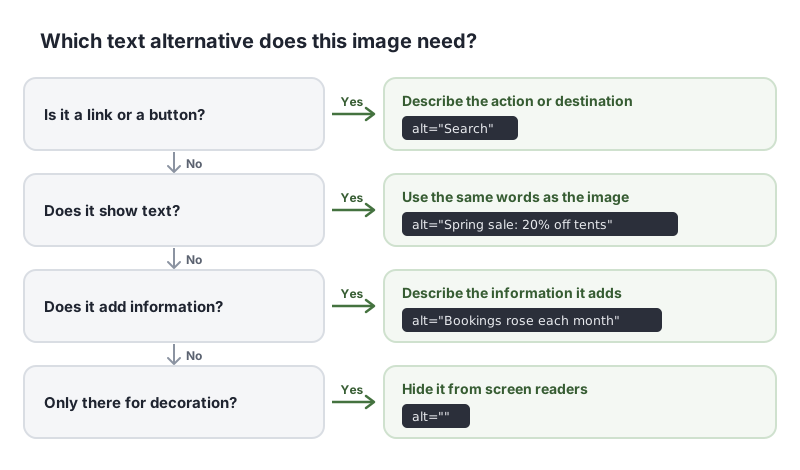
The W3C’s images tutorial and its alt decision tree walk through every case. Here is a short version:
Informative images: describe what matters
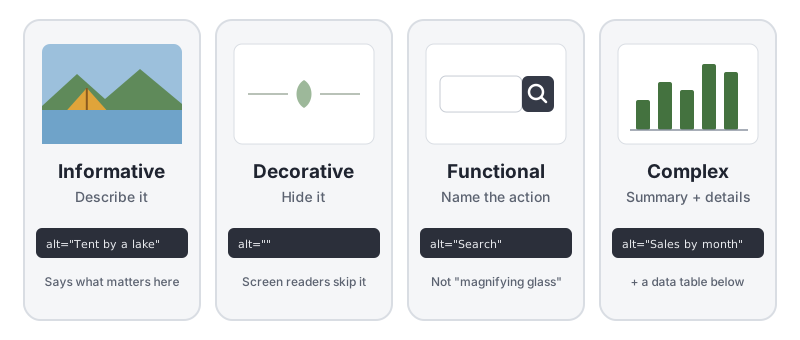
For photos and illustrations that add information, describe what the image shows in this context. The same photo might need different alt text on a product page and on a travel blog. This is the W3C technique H37, using alt attributes on img elements.
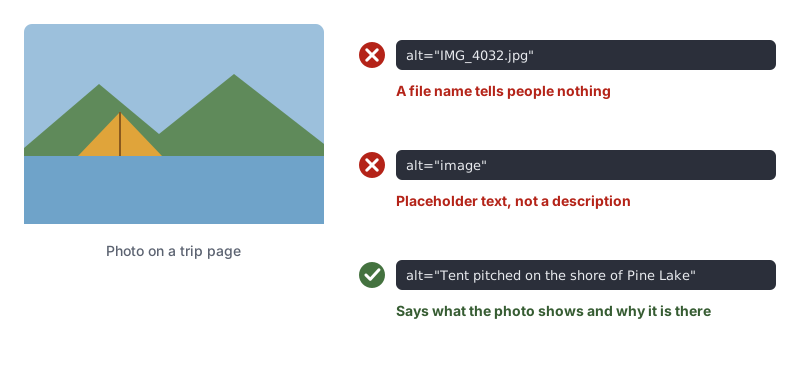
<img src="pine-lake.jpg" alt="Tent pitched on the shore of Pine Lake">
Tips for good alt text:
- Do not start with “Image of” or “Picture of”. Screen readers already say it is an image.
- Keep it short, usually one phrase or sentence.
- Do not repeat text that is right next to the image, such as a caption that already says the same thing.
Decorative images: use an empty alt
If an image is only there for looks, such as a divider, a background pattern or a photo that repeats what the text already says, give it an empty alt so screen readers skip it. This is the W3C technique H67, using empty alt text for images that assistive technology should ignore:
<img src="leaf-divider.svg" alt="">
Use alt="", with nothing between the quotes. Leaving the attribute out, or writing alt="spacer" or alt="decoration", fails. Purely decorative images can also go in CSS as background images.
Functional images: name the action
When an image is a link or a button, the text alternative should say what it does or where it goes, not what it looks like:
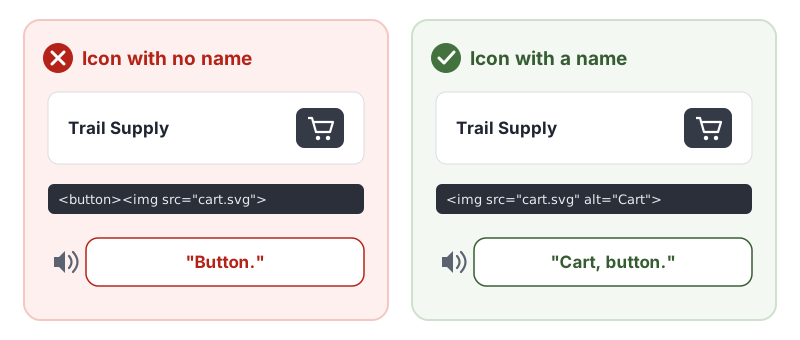
<!-- Image inside a button: the alt text becomes the button's name -->
<button type="submit"><img src="search.svg" alt="Search"></button>

<!-- Logo linking home -->
<a href="/"><img src="logo.svg" alt="Trail Supply home"></a>

<!-- Inline SVG icon button -->
<button type="button" aria-label="Open menu">
  <svg aria-hidden="true" focusable="false"><!-- icon --></svg>
</button>
Images of text: use the same words
If an image contains text, such as a banner or a scanned sign, the alt text should include the same words. Better still, use real text styled with CSS, which also helps meet 1.4.5 Images of Text.
Complex images: short alt plus full details
Charts, diagrams, maps and infographics hold more than a short alt can carry. Give a short alt that says what the image is and its main point, then put the full information in the page, such as a data table below the chart or a text description:
<figure>
  <img src="bookings.svg" alt="Bar chart: bookings rose each month from January to May. Full data in the table below.">
  <figcaption>Campsite bookings, January to May</figcaption>
</figure>
<table>
  <caption>Campsite bookings by month</caption>
  <!-- rows of data -->
</table>
Know the exceptions
1.1.1 Non-text Content lists situations where a full equivalent is not possible or not needed. In each case you still provide a text label that identifies the content:
- Controls and inputs: give them a name that describes their purpose.
- Audio and video: give a short description that identifies them. Captions and transcripts are covered by the 1.2 guidelines, such as 1.2.9 Audio-only (Live).
- Tests and exercises that would be invalid in text, such as a hearing test: identify what they are.
- Sensory experiences, such as a painting or a music performance: identify what they are.
- CAPTCHAs: say what the CAPTCHA is for, and offer another form that uses a different sense, such as an audio CAPTCHA alongside a visual one.
- Decoration, formatting and invisible content: hide it from assistive technology.
How to Test for 1.1.1 Non-text Content
Automated checkers are good at the first step. In our test of 10 accessibility checker tools, every tool caught an image with no alt attribute. Judgment calls were a different story: only one tool flagged a file name used as alt text as an error, and none flagged an informative size chart that had been marked decorative. Combine a scan with a manual check:
- Run an automated scan to find images, image buttons, SVGs and icon links with no text alternative. Run a free WCAG scan of any page to start.
- Review every image’s alt text in context. Tools like the browser’s accessibility inspector or a bookmarklet that shows alt text make this quick.
- Check decorative images. Is each
alt=""really decorative, or does the image carry information? - Check functional images. Does every icon link and button have a name that says what it does?
- Listen with a screen reader. Tab through links and buttons, and read through key content to hear how images are announced.
For a quick reference, see our 1.1.1 Non-text Content page in the WCAG library, and the W3C’s Understanding 1.1.1 Non-text Content.
Related Success Criteria
- 1.4.5 Images of Text: use real text instead of images of text where possible.
- 2.4.4 Link Purpose (In Context): the purpose of each link, including image links, is clear.
- 4.1.2 Name, Role, Value: every control has a name that assistive technology can read.
Want to find missing alt text across a page in seconds? Run a free WCAG scan, then review the results by hand.
Frequently Asked Questions
What level is WCAG 1.1.1 Non-text Content?
Level A, the most basic level. It has been part of WCAG since version 2.0 and is the first success criterion in the standard, so it applies to every site that aims for WCAG 2.0, 2.1 or 2.2.
Do decorative images need alt text?
They need an empty alt attribute, written alt="". That tells screen readers to skip the image. Leaving the alt attribute out completely is a failure, because many screen readers then read the file name instead.
How long should alt text be?
As short as possible while still doing the job. Most alt text is a short phrase or sentence. If an image holds more information than that, such as a chart, give it a short alt and put the full details in the page text or a data table.
Can an automated checker test 1.1.1 Non-text Content?
Partly. Checkers reliably find images with no alt attribute and icon buttons with no name. They cannot judge whether alt text is accurate or whether an image marked decorative actually carries information. In our test of 10 accessibility checkers, every tool caught a missing alt, but only one flagged a file name used as alt text as an error.
How we reviewed this article
- Current version
First published. Checked against the W3C WCAG 2.2 Recommendation, the Understanding document for 1.1.1 Non-text Content and the W3C WAI Images Tutorial.