WCAG 2.2.2 Pause, Stop, Hide Explained in Plain English
WCAG 2.2.2 Pause, Stop, Hide explained simply: what moving and auto-updating content needs, the 5-second rule, carousel fixes and how to test your pages.
Table of contents
2.2.2 Pause, Stop, Hide is the WCAG success criterion for content that moves or changes on its own. If something on your page starts moving, blinking, scrolling or updating automatically, people need a way to pause it, stop it or hide it. That covers auto-rotating carousels, news tickers, blinking badges, animations and live feeds. This guide explains WCAG 2.2.2 Pause, Stop, Hide in plain English, with the 5-second rule, the fixes and how to test your pages.
The official wording (summarized): for moving, blinking or scrolling information that starts automatically, lasts more than five seconds and is shown alongside other content, “there is a mechanism for the user to pause, stop, or hide it”. For auto-updating information that starts automatically and is shown alongside other content, there is a mechanism to pause, stop or hide it “or to control the frequency of the update”. Both have an exception where the movement or updating is essential. (W3C, WCAG 2.2)
What Is 2.2.2 Pause, Stop, Hide?
2.2.2 Pause, Stop, Hide is a Level A requirement under the Operable principle, in the guideline “Enough Time”. It covers four kinds of content:
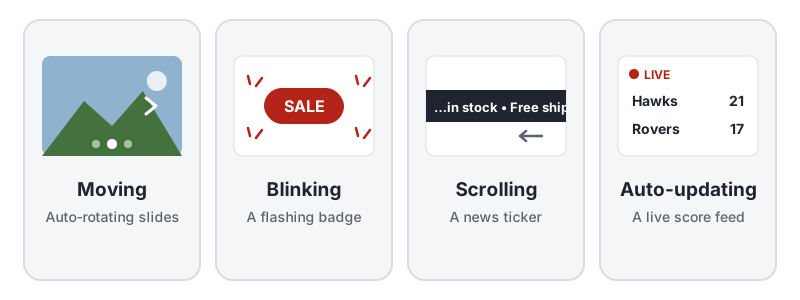
- Moving: carousels and slideshows that advance on their own, animated illustrations, background video
- Blinking: text or badges that switch on and off to grab attention
- Scrolling: tickers and marquees that slide text across the screen
- Auto-updating: feeds, scores, prices and dashboards that refresh without being asked
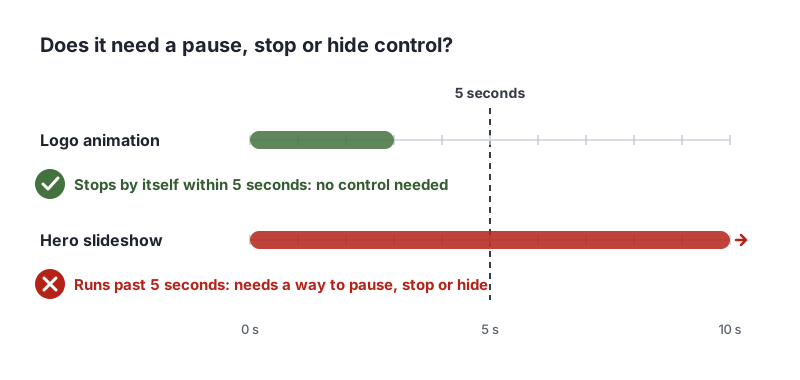
For moving, blinking and scrolling content, the rule applies when all three of these are true:
- It starts automatically, without the visitor pressing anything.
- It lasts more than 5 seconds.
- It is shown alongside other content, so people may be trying to read or use something else at the same time.
For auto-updating content, there is no 5-second limit. If it starts automatically and appears alongside other content, people need a way to pause, stop or hide it, or to control how often it updates.
Why 2.2.2 Pause, Stop, Hide Matters
Movement pulls the eye. That is why designers use it, and it is also why it gets in the way:
- People with attention-related disabilities, such as ADHD, can find it very hard to read or fill in a form while something moves nearby.
- People with cognitive or learning disabilities, and people who read slowly, often cannot finish reading a slide before it changes.
- Screen reader users can lose their place when content changes under them, or hear updates that interrupt what they are reading.
- People with low vision who magnify the page may only see part of a carousel and miss that it is moving.
- Some people with vestibular disorders feel dizzy or sick from large moving areas.
WCAG treats this criterion as so important that it must be met by everything on a page, even content that is not otherwise part of a conformance claim. It is one of four criteria listed under the “non-interference” conformance requirement, because moving content can block people from using the rest of the page.
Who Is Affected by 2.2.2 Pause, Stop, Hide
- People with ADHD and other attention-related disabilities
- People with cognitive, learning or reading disabilities
- Screen reader and screen magnifier users
- People with vestibular disorders or motion sensitivity
- Anyone trying to read a slide or headline before it disappears
How to Meet 2.2.2 Pause, Stop, Hide
Give carousels a visible pause button
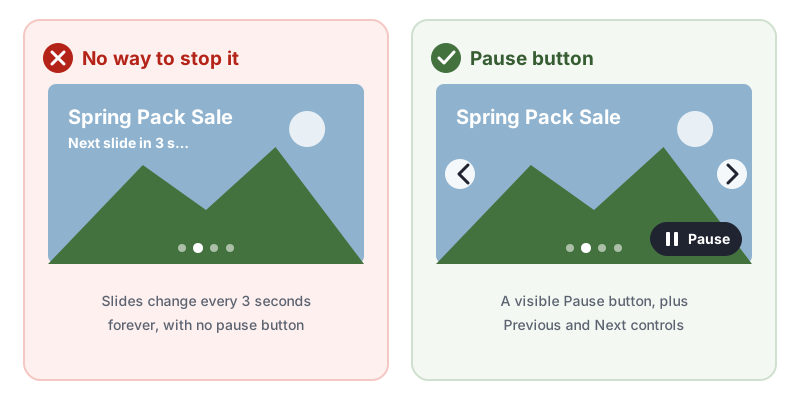
The auto-rotating homepage carousel is the most common failure of 2.2.2 Pause, Stop, Hide. The simplest fix is not to auto-rotate at all. If you do, add a clearly labelled pause button, plus Previous and Next buttons so people can move at their own pace.
<section class="carousel" aria-roledescription="carousel" aria-label="Spring deals">
  <button type="button" class="carousel-pause" aria-pressed="false">Pause slideshow</button>
  <button type="button" class="carousel-prev">Previous slide</button>
  <button type="button" class="carousel-next">Next slide</button>
  <!-- slides -->
</section>
// Auto-advance every 6 seconds, with a pause button that really stops it.
const carousel = document.querySelector('.carousel');
const pause = carousel.querySelector('.carousel-pause');
let timer = setInterval(showNextSlide, 6000);

pause.addEventListener('click', () => {
  const paused = pause.getAttribute('aria-pressed') === 'true';
  if (paused) {
    timer = setInterval(showNextSlide, 6000);
  } else {
    clearInterval(timer);
  }
  pause.setAttribute('aria-pressed', String(!paused));
});

// Also stop while someone is using the carousel with a keyboard or mouse.
carousel.addEventListener('focusin', () => clearInterval(timer));
carousel.addEventListener('mouseenter', () => clearInterval(timer));
This follows the W3C technique G4, allowing the content to be paused and restarted from where it was paused. The WAI-ARIA Authoring Practices carousel pattern also recommends stopping rotation while keyboard focus or the mouse is inside the carousel.
Stop blinking and short animations within 5 seconds
If an animation is only there to draw attention, let it run once and stop. The W3C techniques G11, creating content that blinks for less than 5 seconds, and G152, setting animated GIF images to stop blinking after n cycles, both keep movement under the limit:
/* A "New" badge that pulses three times (3 seconds in total), then stops */
.badge-new {
  animation: pulse 1s ease-in-out 3;
}

/* Respect people who have asked their device for less motion */
@media (prefers-reduced-motion: reduce) {
  .badge-new,
  .ticker-track {
    animation: none;
  }
}
Honoring prefers-reduced-motion is good practice, but it is a device setting many people never change. For anything that runs longer than 5 seconds, still add a control on the page.
Let people pause tickers and scrolling text
A scrolling ticker needs a pause or stop button, or a way to show the same content as static text. The W3C lists scrolling content with no pause as failure F16, scrolling content with no way to pause and restart it. The HTML <marquee> and <blink> elements are obsolete and should not be used at all.
Let people control auto-updating content
For live feeds, scores and dashboards, give people control. Pause updates, let them choose how often content refreshes, or hold new items until they ask to see them:
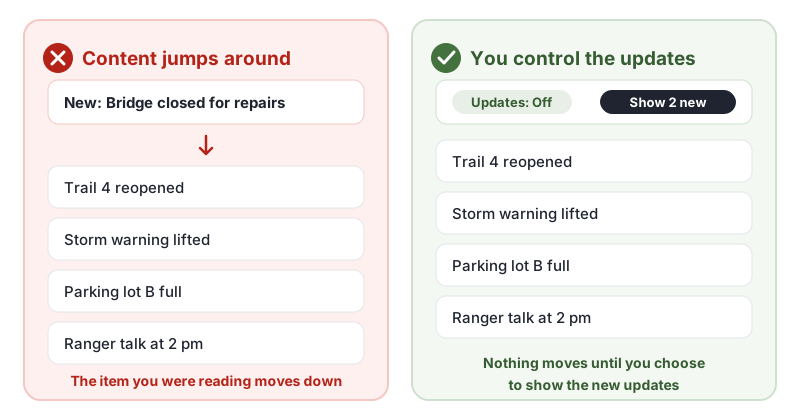
This matches the W3C technique G186, using a control in the web page that stops moving, blinking, or auto-updating content. If the updates are important, pair the “Show new” button with a status message so screen reader users know they are waiting.
Know the “essential” exception
2.2.2 Pause, Stop, Hide does not apply when the movement or updating is essential to the activity. The W3C’s Understanding document gives the example of a loading animation: it can count as essential when nothing can be done during that phase and removing it could make people think the page has frozen. A slideshow of product photos or a promotional ticker is not essential.
How to Test for 2.2.2 Pause, Stop, Hide
Automated checkers can flag the obsolete <blink> and <marquee> elements, but they cannot tell whether a modern carousel, animation or feed can be paused. In our test of 10 accessibility checker tools, none of them flagged an auto-advancing carousel with no pause button. Test by hand:
- Load each page and wait 10 seconds without touching anything. Note everything that moves, blinks, scrolls or updates.
- Time each one. Does it stop on its own within 5 seconds?
- Look for a control for anything that keeps going: a pause, stop or hide button, or a setting that controls update frequency.
- Use the control with a keyboard. Tab to it, press Enter or Space, and confirm the movement really stops, and stays stopped.
- Check the essential exception before you mark something as a failure.
For a quick reference, see our 2.2.2 Pause, Stop, Hide page in the WCAG library. The W3C’s Understanding 2.2.2 Pause, Stop, Hide has more examples.
Related Success Criteria
- 2.2.1 Timing Adjustable: time limits can be turned off, adjusted or extended.
- 2.2.3 No Timing: the Level AAA rule that tasks have no time limit at all.
- 1.4.2 Audio Control: audio that plays automatically for more than 3 seconds can be paused or stopped.
- 2.3.1 Three Flashes or Below Threshold: nothing flashes more than three times a second.
Want to find the issues software can catch while you check moving content by hand? Run a free WCAG scan of any page.
Frequently Asked Questions
What level is WCAG 2.2.2 Pause, Stop, Hide?
Level A, the most basic level. It has been part of WCAG since version 2.0. It is also one of four criteria WCAG says must be met by all content on a page, even content that is not otherwise relied on for conformance, because moving content can make a whole page unusable.
Do auto-rotating carousels fail WCAG 2.2.2?
Only if they keep moving for more than 5 seconds with no way to pause, stop or hide them. A carousel with a visible pause button passes. A carousel that only changes slides when the visitor clicks Next does not start automatically, so 2.2.2 Pause, Stop, Hide does not apply to it.
Is prefers-reduced-motion enough to meet 2.2.2?
We do not recommend relying on it alone. Respecting the reduced motion setting is good practice, but many people do not know the setting exists. A visible pause or stop control on the page works for everyone.
Can an automated checker test 2.2.2 Pause, Stop, Hide?
Only a small part. Tools such as axe-core flag the obsolete blink and marquee HTML elements, but they cannot tell whether a modern carousel or ticker has a working pause control. In our test of 10 accessibility checkers, none of them flagged an auto-advancing carousel with no pause button.
How we reviewed this article
- Current version
First published. Checked against the W3C WCAG 2.2 Recommendation and the Understanding document for 2.2.2 Pause, Stop, Hide.