WCAG 3.2.2 On Input Explained in Plain English
WCAG 3.2.2 On Input explained simply: what counts as a change of context, who it helps, how to meet it with examples and code, and how to test your forms.
Table of contents
3.2.2 On Input is the WCAG success criterion that stops forms from doing surprising things. When someone types into a field, picks an option or ticks a box, the page must not suddenly take them somewhere else unless they were told it would happen first. This guide explains WCAG 3.2.2 On Input in plain English, with examples, code and a simple way to test it.
The official wording: “Changing the setting of any user interface component does not automatically cause a change of context unless the user has been advised of the behavior before using the component.” (W3C, WCAG 2.2)
What Is 3.2.2 On Input?
3.2.2 On Input is a Level A requirement under the Understandable principle of WCAG. It says that entering data or making a choice must never, on its own, cause a change of context unless you warned people in advance.
A change of context is a big change that can disorient someone. The W3C lists four kinds:
- Opening a new page or window
- Moving keyboard focus somewhere else
- Changing the viewport, for example scrolling the page to a different spot
- Changing content so much that the meaning of the page changes
Small changes of content are fine. Showing an extra field when someone picks “Other”, updating a price when they change quantity, or displaying a hint are all allowed under 3.2.2 On Input.
Why 3.2.2 On Input Matters
Unexpected changes are annoying for everyone. For some people they make a form impossible to finish:
- Screen reader users may not notice that focus moved or a new page loaded. They keep typing into what they think is the same field.
- People with low vision who use magnification only see part of the screen, so a change elsewhere on the page goes unnoticed.
- Keyboard users often move through a dropdown with the arrow keys. If every arrow press counts as a selection and reloads the page, they can never reach the option they want.
- People with cognitive disabilities can lose their place, or lose confidence, when the page changes without them asking.
Who Is Affected by 3.2.2 On Input
- People who are blind and use screen readers
- People with low vision who use screen magnifiers
- People with motor disabilities who use a keyboard, switch or voice control
- People with cognitive, learning or attention-related disabilities
- Anyone filling in a form on a small screen, where a change is easy to miss
How to Meet 3.2.2 On Input
Use a submit button for changes of context
The simplest fix is to let people choose, then confirm. A dropdown that switches the site’s language should do nothing until the visitor presses a button.
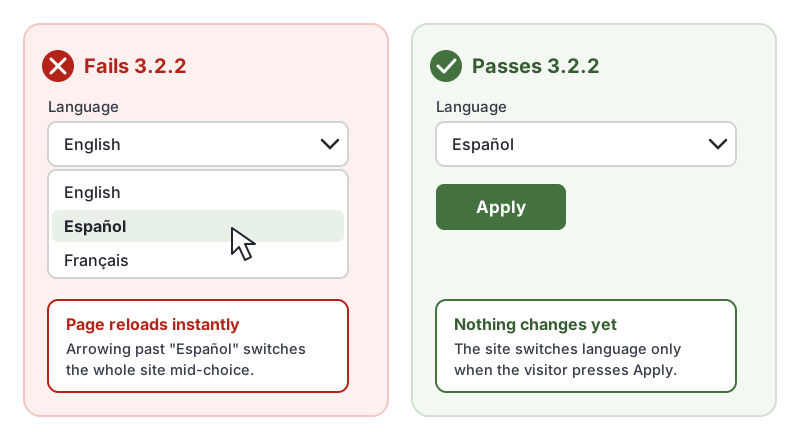
Here is the pattern that fails 3.2.2 On Input, next to one that passes:
<!-- Fails: choosing an option navigates straight away -->
<label for="lang">Language</label>
<select id="lang" onchange="location.href = this.value">
  <option value="/en">English</option>
  <option value="/es">Español</option>
</select>

<!-- Passes: nothing happens until the visitor presses Apply -->
<form action="/set-language" method="get">
  <label for="lang2">Language</label>
  <select id="lang2" name="lang">
    <option value="en">English</option>
    <option value="es">Español</option>
  </select>
  <button type="submit">Apply</button>
</form>
This follows the W3C technique G80, providing a submit button to initiate a change of context.
Give notice before the change
If a control really does need to act immediately, say so before people use it, and connect the instruction to the control with aria-describedby so screen readers announce it.
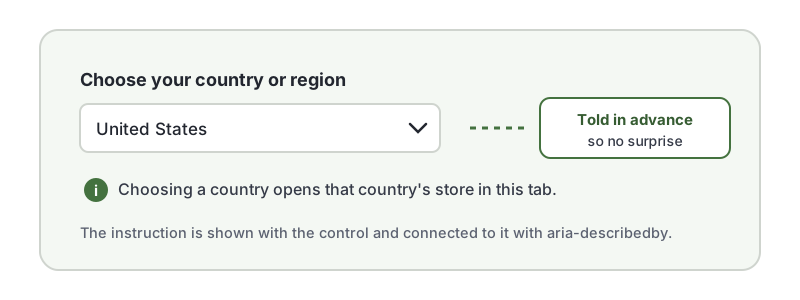
<label for="country">Choose your country or region</label>
<p id="country-note">Choosing a country opens that country's store in this tab.</p>
<select id="country" aria-describedby="country-note">…</select>
This is the W3C technique G13, describing what will happen before a change of context.
Do not auto-advance focus or auto-submit
Two common failures of 3.2.2 On Input, both documented by the W3C:
- Submitting a form automatically when the last field is filled in (failure F36).
- Opening a new window when someone changes a radio button, checkbox or select list (failure F37).
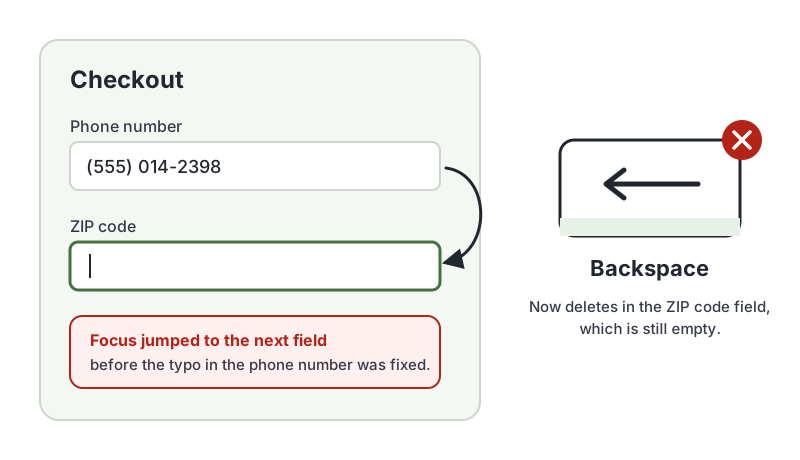
Moving focus to the next field once a field is full, as in the phone number example above, is a change of context too. Let people move on with the Tab key when they are ready, or explain the behavior before the field.
How to Test for 3.2.2 On Input
Automated tools cannot reliably catch 3.2.2 On Input failures, because they depend on what happens when you use the page. In our test of 10 accessibility checker tools, every tool missed the barriers that depend on behavior, such as a keyboard trap and an auto-advancing carousel. Test it by hand:
- Use only the keyboard. Tab to each text field, dropdown, radio button and checkbox.
- Type into each field and change each value, including with the arrow keys in dropdowns.
- Watch for a new page, a new window or tab, focus jumping elsewhere, or the page scrolling away.
- If anything like that happens, check that the page told you it would, before you used the control.
For a quick reference to the criterion, see our 3.2.2 On Input page in the WCAG library, and for a full keyboard routine read our keyboard accessibility testing guide.
Related Success Criteria
- 3.2.1 On Focus: moving focus to a component must not change the context either.
- 3.2.5 Change on Request: the stricter Level AAA version, where changes of context happen only when the person asks.
- 3.3.2 Labels or Instructions: the instructions that give people advance notice.
Want to catch the issues software can find while you check forms by hand? Run a free WCAG scan of any page.
Frequently Asked Questions
What level is WCAG 3.2.2 On Input?
Level A, the most basic level of WCAG conformance. It has been part of WCAG since version 2.0 and is included in 2.1 and 2.2, so it applies to any site aiming for Level A or AA.
Does 3.2.2 On Input ban all changes when someone uses a form?
No. It only covers changes of context, such as opening a new page or window, or moving focus. Changes of content are fine, for example revealing an extra "Please specify" field when someone picks "Other".
Is automatically moving to the next field allowed?
Only if people are told about it before they use the field. Moving focus is a change of context, so a form that jumps to the next field once one is full, without a warning beforehand, fails 3.2.2 On Input.
Can an automated checker find 3.2.2 On Input failures?
Rarely. Whether a change of context happens depends on the page's behavior, so you need to use each form control and watch what happens. In our test of 10 accessibility checkers, every tool missed the barriers that depend on behavior, such as a keyboard trap and an auto-advancing carousel.
How we reviewed this article
- Current version
First published. Checked against the W3C WCAG 2.2 Recommendation and the Understanding document for 3.2.2 On Input.