SEO Audit: How to Conduct a Full Site Check
How to do an SEO audit step by step: crawling and indexing, technical health, speed, on-page basics, content and links, with free tools and a checklist.
Table of contents
An SEO audit is a full health check of how well search engines can find, understand and show your website. It turns up the problems that quietly cost you traffic: pages Google cannot index, broken links, slow templates, missing titles and thin or duplicate content. This guide walks through how to conduct an SEO audit of your whole site, step by step, using free tools, and what to fix first.
What Is an SEO Audit?
An SEO audit checks your site against the basics that search engines rely on, as described in Google’s SEO Starter Guide. A full SEO audit covers six areas:
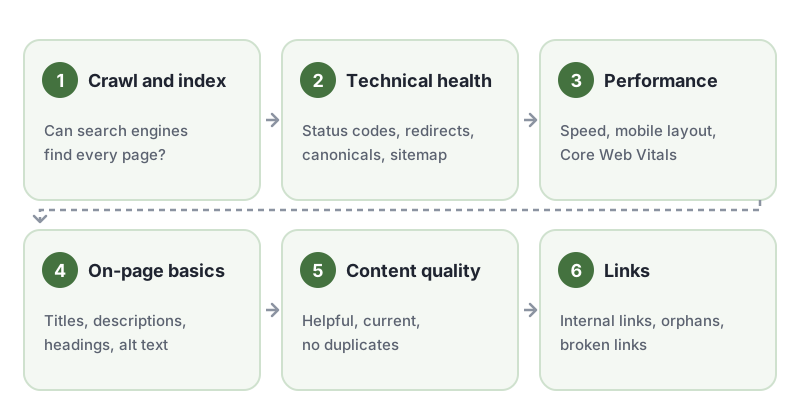
- Crawling and indexing: can search engines reach and index every page that matters?
- Technical health: status codes, redirects, canonical tags and your XML sitemap.
- Performance: loading speed, mobile layout and Core Web Vitals.
- On-page basics: titles, meta descriptions, headings and image alt text.
- Content quality: is each page useful, current and unique?
- Links: internal links, orphan pages and broken links.
Work through them in that order. There is no point polishing the title of a page that search engines cannot index.
Before You Start Your SEO Audit
Gather three things:
- Access to Google Search Console for your domain. It shows which pages Google has indexed, why others were excluded, and which searches bring people to your site.
- A site crawler. A crawler visits every page it can reach from your homepage and lists each URL with its status code, title, description, headings and links. Several desktop crawlers have free versions for smaller sites.
- A spreadsheet to record each issue, the pages it affects, how serious it is and who will fix it.
Step 1: Check Crawling and Indexing
If search engines cannot crawl or index a page, nothing else in your SEO audit matters for that page.
- Open the Pages report in Search Console (under Indexing). Look at the reasons pages are “not indexed”, such as “Excluded by noindex tag”, “Blocked by robots.txt”, “Not found (404)” or “Duplicate without user-selected canonical”. Some exclusions are intentional; others are mistakes.
- Read your robots.txt file at yourdomain.com/robots.txt. Make sure it does not block pages or files you want in search results. Google explains how it works in its introduction to robots.txt.
- Search for stray noindex tags. A
noindexleft over from a staging site is one of the most common reasons a whole section disappears from search. - Compare numbers. Roughly how many pages does your crawler find, how many are in your sitemap, and how many does Search Console say are indexed? Big gaps point to a problem.
Step 2: Audit Technical Health
Use your crawl to check:
- Status codes. Fix internal links that lead to 404 pages. Look for server errors (5xx) and investigate them.
- Redirects. Links should point straight to the final URL. Replace redirect chains, where one redirect leads to another, with a single redirect.
- Canonical tags. Each page should point its canonical tag at its own preferred URL, not at a different page or at a redirect. Google’s guide to consolidating duplicate URLs explains when to use them.
- XML sitemap. Your sitemap should list the pages you want indexed, and only those: no redirects, no 404s and no noindexed pages. Submit it in Search Console. See Google’s sitemaps overview.
- HTTPS. Every page should load over HTTPS, and the HTTP version should redirect to it.
- Structured data. If you use schema markup, such as FAQ, product or article data, check it with Google’s Rich Results Test.
Step 3: Check Performance and Mobile Experience
Slow, awkward pages lose visitors, and Google uses page experience signals in ranking. Test your main templates, such as the homepage, a category page, a product or service page and a blog post, with PageSpeed Insights. It reports the Core Web Vitals:
- Largest Contentful Paint (LCP): how quickly the main content appears.
- Interaction to Next Paint (INP): how quickly the page responds when people interact with it.
- Cumulative Layout Shift (CLS): how much the layout jumps around while loading.
Search Console’s Core Web Vitals report shows the same measures from real visitors across your whole site. Common fixes include compressing and resizing images, loading below-the-fold images lazily, reducing unused JavaScript and reserving space for images and ads so the layout does not shift.
Also check every template on a phone. Text should be readable without zooming, and buttons and links should be easy to tap.
Step 4: Review On-Page SEO Basics
Export titles, descriptions and headings from your crawl and check each page:
- Title tags: every page needs a unique, descriptive title that says what the page is about. Google’s guide to title links explains how titles appear in results.
- Meta descriptions: a unique summary of the page that could persuade someone to click. Missing or duplicated descriptions are easy wins.
- Headings: one clear H1 per page, with H2s and H3s that reflect the structure of the content. A logical heading structure also helps screen reader users move around the page.
- Image alt text: informative images need alt text that describes them. It helps image search, and it is a basic accessibility requirement under WCAG 1.1.1 Non-text Content.
- URLs: short, readable and descriptive, using words rather than ID numbers where possible.
Step 5: Evaluate Content Quality
This is the part of an SEO audit no tool can do for you. Google’s guidance on creating helpful, reliable, people-first content is a good yardstick. For each important page, ask:
- Does it fully answer what someone searching for this topic wants to know?
- Is it accurate and up to date? Are dates, prices and facts current?
- Does it show real experience or expertise, with sources where facts need them?
- Is there another page on your site covering the same topic? If so, merge them or make each one distinct.
- Are there thin pages, such as empty category pages or near-identical location pages, that add little value?
Record which pages to update, merge, redirect or remove.
Step 6: Audit Internal and External Links
Links help search engines discover pages and understand how they relate:
- Orphan pages. Pages with no internal links pointing to them are hard for both people and search engines to find. Compare your sitemap with your crawl to find them, and link to each one from related pages.
- Anchor text. Use descriptive link text such as “WCAG color contrast checker”, not “click here”. Descriptive links also help screen reader users, who often browse a page by its list of links.
- Broken links. Fix or remove internal and external links that return errors.
- Important pages. Your key pages should be reachable within a few clicks of the homepage, and linked from related content.
Accessibility and Your SEO Audit
Google does not list accessibility as a ranking factor, but an SEO audit and an accessibility review overlap a lot. Clear titles, a logical heading structure, alt text, descriptive link text, readable text and fast, stable pages help search engines and people using assistive technology alike. While you are auditing, it is worth running an accessibility check too:
- Scan your templates with a free WCAG checker to find missing alt text, empty links, low contrast and heading problems in one pass.
- Check text colors with the WCAG color contrast checker.
- Remember that automated checks only find part of the picture, for SEO and accessibility alike. Our guide to automated vs manual accessibility testing explains what to check by hand.
Turning Your SEO Audit Into a Plan
Finish your SEO audit with a prioritized list, not just a long report:
- Blockers first: anything stopping important pages being crawled or indexed.
- High-traffic pages next: fix technical, speed and on-page problems on the pages that bring in the most visitors or revenue.
- Site-wide patterns: fix issues in shared templates, such as a missing H1 in a layout, once, and every page benefits.
- Content improvements: update, merge or expand pages based on Step 5.
- Re-check: after fixes go live, use Search Console’s URL Inspection tool to request reindexing for key pages, and compare results in a month or two.
Then keep watching. Search Console will email you about many new indexing problems, and a scheduled crawl catches broken links and missing titles before they pile up.
Frequently Asked Questions
How often should I do an SEO audit?
Run a full SEO audit at least once or twice a year, and after any big change such as a redesign, a platform migration or a change of domain. Check Google Search Console every week or two between audits, so you catch indexing problems early.
What tools do I need for an SEO audit?
You can do a thorough SEO audit with free tools: Google Search Console for indexing and search performance, PageSpeed Insights for speed and Core Web Vitals, the Rich Results Test for structured data, and a site crawler to list every page, status code and title on your site.
Does website accessibility help SEO?
Google does not list accessibility as a ranking factor, but many accessibility fixes overlap with good SEO practice: descriptive page titles, a logical heading structure, alt text on images and descriptive link text all help both search engines and people using assistive technology understand your pages.
What should I fix first after an SEO audit?
Fix anything that stops pages being crawled or indexed first, such as a stray noindex tag, a robots.txt block or broken redirects. Then fix problems on your most important pages, such as missing titles, slow load times and broken links, before moving on to smaller improvements.
How we reviewed this article
- Current version
First published. Checked against Google Search Central documentation.