WCAG 3.3.1 Error Identification Explained in Plain English
WCAG 3.3.1 Error Identification explained simply: how to show form errors in text, tie them to fields, announce them and test your error messages.
Table of contents
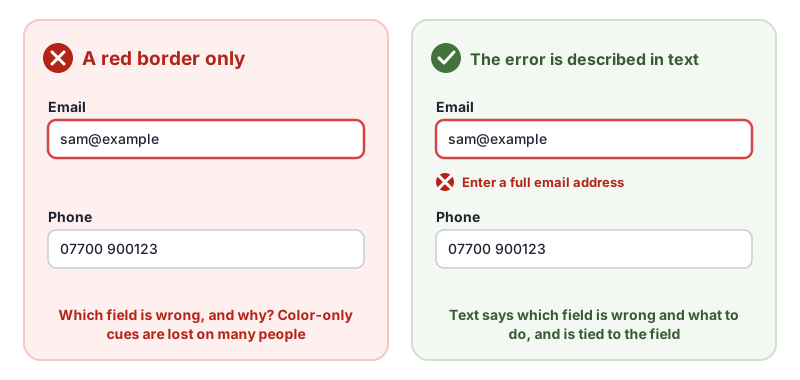
3.3.1 Error Identification is the WCAG success criterion that says when a form detects a mistake, it must tell people which field is wrong and describe the problem in text. A red border, an icon on its own or a vague “Something went wrong” is not enough. This guide explains WCAG 3.3.1 Error Identification in plain English, how to write and connect error messages, and how to test them.
The official wording: “If an input error is automatically detected, the item that is in error is identified and the error is described to the user in text.” (W3C, WCAG 2.2)
What Is 3.3.1 Error Identification?
3.3.1 Error Identification is a Level A requirement under the Understandable principle, in the guideline “Input Assistance”. It applies whenever your site automatically detects an input error, for example a required field left empty, an email without an @ sign or a date in the wrong format. When that happens, two things are required:
- The item in error is identified, so people know which field to fix.
- The error is described in text, so people know what is wrong.
Why 3.3.1 Error Identification Matters
Forms are where people sign up, buy, book and apply. If an error is not clearly identified, people cannot finish the task:
- Screen reader users do not see red borders or icons. Without text, they may not know the form failed at all.
- People with color vision deficiency may not see a red border.
- People with cognitive disabilities need clear, specific messages to understand what to change.
- Everyone wastes time hunting for the problem in a long form.
Who Is Affected by 3.3.1 Error Identification
- People who are blind or have low vision
- People with color vision deficiency
- People with cognitive, learning or memory disabilities
- People who use screen magnification and cannot see the whole form at once
How to Meet 3.3.1 Error Identification
Show a specific text message next to the field
Describe the problem in plain words, next to the field it belongs to: “Enter your email address” for an empty required field (G83), “Choose a size from the list” for an invalid choice (G84), or “Enter a full email address, like sam@example.com” for the wrong format (G85). Avoid “Invalid input” and “Error”.
Connect the message to the field in code
Mark the field as invalid with aria-invalid="true" (ARIA21) and point to the message with aria-describedby, so screen readers read it when the field is focused.
<label for="email">Email</label>
<input id="email" type="email" aria-invalid="true" aria-describedby="email-error">
<p id="email-error" class="field-error">Enter a full email address, like sam@example.com</p>
Add an error summary for longer forms
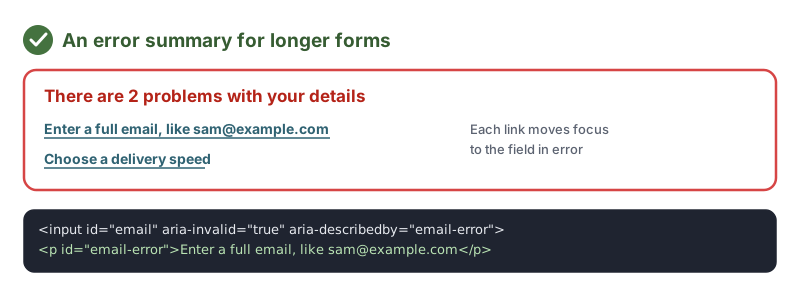
When a form is submitted with several errors, show a summary at the top, move focus to it, and link each item to its field. Keep the inline messages too.
Announce errors that appear without a page reload
If errors appear while people type or after a script checks the form, make sure screen readers hear them: move focus to the summary, or use a live region such as role="alert" (ARIA19). The W3C techniques SCR18 and SCR32 cover client-side validation. See also 4.1.3 Status Messages.
Do not rely on color or icons alone
Pair any red border or warning icon with words. Color alone fails 1.4.1 Use of Color.
How to Test for 3.3.1 Error Identification
- Submit each form empty. Every required field should show a text message that names the problem.
- Enter invalid data: a bad email, a past date, letters in a phone field. Check each message is specific.
- Check the connection. Tab to a field in error with a screen reader running. Its message should be read out.
- Check announcements for errors that appear without a page reload.
- View the form in grayscale. The errors should still be obvious.
Related Success Criteria
- 3.3.2 Labels or Instructions: fields have labels and instructions up front.
- 3.3.3 Error Suggestion: suggest how to fix the error, at Level AA.
- 3.3.4 Error Prevention (Legal, Financial, Data): important submissions can be checked or reversed.
- 1.4.1 Use of Color: errors are not shown by color alone.
- 4.1.3 Status Messages: dynamic messages are announced.
Run a free WCAG scan to find fields with missing labels and error markup problems, then submit your forms with mistakes to check the messages.
Testing WCAG 3.3.1 With AccessBell
This criterion depends on meaning or context, so it needs a person to judge. AccessBell's report lists it for manual review rather than marking it pass or fail automatically, so it is not missed.
Run a free scan to spot issues on your own pages.
Frequently Asked Questions
What level is WCAG 3.3.1 Error Identification?
Level A. It has been in WCAG since version 2.0.
Is a red border enough to identify an error?
No. 3.3.1 Error Identification requires the error to be described in text. A red border alone also fails 1.4.1 Use of Color. Add a text message that names the problem, next to the field and connected to it in the code.
Does 3.3.1 require suggestions for fixing the error?
No, that is 3.3.3 Error Suggestion, a Level AA criterion. 3.3.1 only requires that the field is identified and the error is described. In practice, good messages do both: "Enter a date in the format DD/MM/YYYY".
Do browser validation messages meet 3.3.1?
Native browser messages from the required attribute and input types do identify the field and describe the error in text, so they can meet 3.3.1. Many teams replace them with custom messages for consistent wording and styling, which is fine if the messages are in text and tied to the field.
Can AccessBell test WCAG 3.3.1 automatically?
Not fully. This criterion needs a person to judge, so AccessBell's report lists it for manual review rather than marking it pass or fail on its own.
Sources
- W3C: Understanding 3.3.1 Error Identification (opens in a new tab)
- W3C: Web Content Accessibility Guidelines (WCAG) 2.2 (opens in a new tab)
This page explains a technical standard and is not legal advice. See our disclaimer.
How we reviewed this page
- Current version
First published. Checked against the W3C WCAG 2.2 Recommendation, the Understanding document for 3.3.1 Error Identification and the W3C techniques it lists.