WCAG 1.3.1 Info and Relationships Explained in Plain English
WCAG 1.3.1 Info and Relationships explained simply: why headings, lists, tables and form labels must be in the code, with fixes and how to test.
Table of contents
1.3.1 Info and Relationships is the WCAG success criterion that says the structure people can see must also be in the code. If something looks like a heading, it must be coded as a heading. If items look like a list, they must be a list. If a label sits next to a field, the two must be connected. This guide explains WCAG 1.3.1 Info and Relationships in plain English, with fixes for headings, lists, tables and forms, and how to test your pages.
The official wording: “Information, structure, and relationships conveyed through presentation can be programmatically determined or are available in text.” (W3C, WCAG 2.2)
What Is 1.3.1 Info and Relationships?
1.3.1 Info and Relationships is a Level A requirement under the Perceivable principle, in the guideline “Adaptable”. “Programmatically determined” means software, such as a screen reader, can read the structure from the code instead of guessing it from how the page looks.
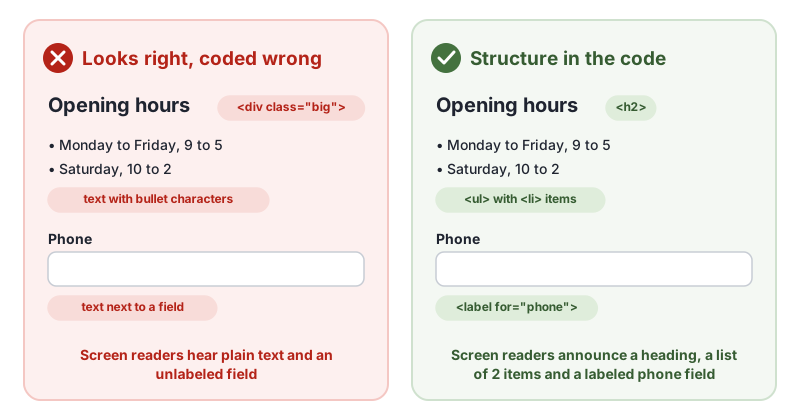
Sighted people understand a page from visual cues: big bold text is a heading, indented items with bullets are a list, text in a grid lines up with the column at the top. Screen readers, voice control and reader modes cannot see those cues. They rely on the HTML.
Why 1.3.1 Info and Relationships Matters
Structure is how people navigate. Screen reader users commonly jump from heading to heading to skim a page, the way sighted people scan bold titles. They hear “list, 5 items” and know how long a list is. In a data table, they hear the column header with each cell. When the structure is missing:
- A long page becomes one undivided stream of text, with no headings to jump between.
- Form fields are announced as “edit text” with no name, so people do not know what to type.
- A table of prices reads as a sequence of numbers with no meaning.
- Reader modes, browser extensions and custom stylesheets cannot reshape the content, because they do not know what each part is.
Who Is Affected by 1.3.1 Info and Relationships
- People who are blind and use screen readers
- People with low vision who use screen magnifiers together with speech
- People who use voice control, which relies on labels to target fields
- People with cognitive disabilities who use tools that simplify or restyle pages
- Anyone using reader mode, a custom stylesheet or a text-only browser
How to Meet 1.3.1 Info and Relationships
Use real headings in a logical order
Mark headings with h1 to h6, following the outline of the page: one h1 for the page topic, h2 for main sections, h3 for subsections. Do not pick a level because of its size; change the size with CSS. This is the W3C technique H42, using h1 to h6 to identify headings. Using CSS to make text look like a heading without the markup is failure F2.
Use list markup for lists
Use ul for unordered lists, ol for numbered steps and dl for terms with descriptions (H48). Typing bullet characters or numbers at the start of lines gives a visual list with no structure.
Give data tables real headers
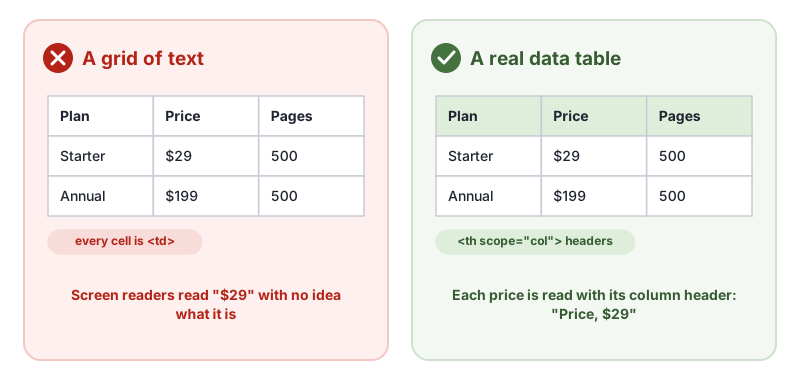
Mark header cells with th and, for simple tables, add scope="col" or scope="row" (H51, H63). Not marking up table headers is failure F91. Use tables only for data, not for layout.
<table>
  <caption>Plans</caption>
  <tr><th scope="col">Plan</th><th scope="col">Price</th><th scope="col">Pages</th></tr>
  <tr><td>Starter</td><td>$29</td><td>500</td></tr>
</table>
Connect labels to fields and group related controls
Every form field needs a label element tied to it with for and id (H44). Groups of radio buttons or checkboxes that answer one question go in a fieldset with a legend (H71).
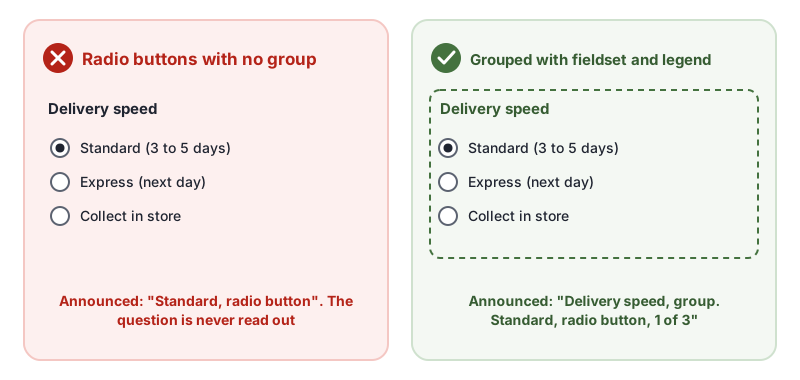
<fieldset>
  <legend>Delivery speed</legend>
  <label><input type="radio" name="speed" value="standard"> Standard (3 to 5 days)</label>
  <label><input type="radio" name="speed" value="express"> Express (next day)</label>
</fieldset>
Labels also help meet 3.3.2 Labels or Instructions and 4.1.2 Name, Role, Value.
Mark up page regions
Use header, nav, main, aside and footer so people can jump between regions (ARIA11, using ARIA landmarks). Native HTML elements create the landmarks for you.
Use text when styling carries meaning
If you show meaning with styling, such as a strikethrough old price or text in a highlighted box, make sure it is also in the code or the text: use del and ins, strong and em, or add words such as “Was $49, now $29”.
How to Test for 1.3.1 Info and Relationships
Automated tools catch part of 1.3.1 Info and Relationships, such as list items outside a list, table headers that point nowhere and fields with no label. A person needs to check the rest:
- List the headings. Use a browser extension or a screen reader’s headings list. Every visual heading should appear, at a level that matches the outline, and nothing else should.
- Turn off CSS or use reader mode. Does the page still read in a sensible structure?
- Check lists and tables. Lists should be announced as lists; data tables should announce their headers with each cell.
- Click each label. Clicking a label should focus its field. Check that radio groups are announced with their question.
- Look for meaning in styling only, such as color, bold or position, and check it is also in the markup or text.
Our keyboard accessibility testing guide pairs well with a screen reader check of headings and forms.
Related Success Criteria
- 1.3.2 Meaningful Sequence: the reading order in the code makes sense.
- 2.4.6 Headings and Labels: headings and labels describe their topic or purpose.
- 2.4.10 Section Headings: sections of content have headings, at Level AAA.
- 3.3.2 Labels or Instructions: form fields have labels or instructions.
- 4.1.2 Name, Role, Value: every control has a name and role.
Run a free WCAG scan to find missing labels, broken lists and table header problems, then check headings and structure by hand.
Pass and fail examples
The guide above is the long version. These two snippets are the shortest pair that shows the difference.
<p><strong style="font-size:2rem">What is in the box</strong></p>
<p>• Jacket<br>• Care card</p><h2>What is in the box</h2>
<ul>
<li>Jacket</li>
<li>Care card</li>
</ul>Testing WCAG 1.3.1 with AccessBell
AccessBell's scanner runs axe-core, which includes 9 rules that catch code-level failures of this criterion. Automated checks help you spot issues quickly. A person still needs to review what they cannot judge.
aria-hidden-body: Ensure aria-hidden="true" is not present on the document body. (details (opens in a new tab))aria-required-children: Ensure elements with an ARIA role that require child roles contain them (details (opens in a new tab))aria-required-parent: Ensure elements with an ARIA role that require parent roles are contained by them (details (opens in a new tab))definition-list: Ensure <dl> elements are structured correctly (details (opens in a new tab))dlitem: Ensure <dt> and <dd> elements are contained by a <dl> (details (opens in a new tab))list: Ensure that lists are structured correctly (details (opens in a new tab))listitem: Ensure <li> elements are used semantically (details (opens in a new tab))td-headers-attr: Ensure that each cell in a table that uses the headers attribute refers only to other <th> elements in that table (details (opens in a new tab))th-has-data-cells: Ensure that <th> elements and elements with role=columnheader/rowheader have data cells they describe (details (opens in a new tab))
This criterion is included in: WCAG 2.2 AA Checker, WCAG 2.1 AA Checker, ADA Compliance Checker, Section 508 Checker, EN 301 549 Checker.
Check your site for this with a free scan of one public page. AccessBell is a website accessibility monitoring tool, not an overlay.
Common failures on Shopify, WordPress, Wix and Squarespace
These are patterns in how the builders work. They are not counts from AccessBell scans. Where a platform hosts the screen, a merchant may not be able to change it, and an unscanned page is not a pass.
Shopify
Themes sometimes fake a heading with a large paragraph style, and product specification “tables” are divs with no header cells. The relationship has to be in the markup. Review a product page and a blog article in the Shopify checker, then check the heading outline.
WordPress
The block editor’s Heading block is the right tool. A paragraph set to a large font, or a page builder “title” that is a div, fails 1.3.1 even when it looks like a heading. Tables pasted from a document often lose header cells. Scan with the WordPress checker.
Wix
A text style named “Heading 2” is not always an h2. The Wix checklist treats real heading elements as the check. The wizard does not describe the outline of every strip. Use the Wix checker and a heading list.
Squarespace
Squarespace’s inclusive design guidance says to format headings with the text toolbar, not by enlarging body text. The Squarespace checklist quotes that and maps it to 1.3.1. One h1, then headings in order, on the published page.
Level and conformance
Level A, in WCAG since 2.0, under Adaptable. It covers headings, lists, tables and labels: if the visual design says those relationships exist, the code has to say so too. It does not grade whether the heading text is meaningful. That is 2.4.6 Headings and Labels, Level AA.
Conforming at Level AA means meeting every Level A and Level AA criterion that applies, not only the ones labeled AA. See the WCAG 2.2 conformance requirements. This page explains the technical rule. It is not a legal opinion. Read the disclaimer.
Related WCAG criteria
- 2.4.6 Headings and Labels (Level AA, WCAG 2.0)
- 3.3.2 Labels or Instructions (Level A, WCAG 2.0)
- 4.1.2 Name, Role, Value (Level A, WCAG 2.0)
- 1.3.2 Meaningful Sequence (Level A, WCAG 2.0)
Every criterion is listed in the WCAG 2.2 success criteria guide.
Frequently Asked Questions
What level is WCAG 1.3.1 Info and Relationships?
Level A, the most basic level. It has been part of WCAG since version 2.0, so every site aiming for WCAG 2.0, 2.1 or 2.2 has to meet it.
Does 1.3.1 mean I have to use ARIA?
Usually not. Native HTML elements such as headings, lists, tables, labels and fieldsets carry the structure on their own. ARIA is for custom components that HTML cannot describe, and the first rule of ARIA is to use a native element when one exists.
Is bold text a heading under 1.3.1?
Only if it is marked up as one. Text that looks like a heading because it is large or bold, but is coded as a paragraph or div, fails 1.3.1 Info and Relationships. Use a real h1 to h6 element at the right level.
Can automated tools test 1.3.1 Info and Relationships?
Partly. Tools can find broken list markup, table headers that point nowhere and form fields with no label. They cannot tell whether bold text is really a heading, or whether a grid of text is really a data table, so check those by hand.
Can AccessBell test WCAG 1.3.1 automatically?
Yes. AccessBell runs 9 automated rules that can catch failures of this criterion, including in our WCAG 2.2 AA Checker, WCAG 2.1 AA Checker, ADA Compliance Checker, Section 508 Checker, EN 301 549 Checker. A person still needs to check what automation cannot judge.
Sources
- W3C: Understanding 1.3.1 Info and Relationships (opens in a new tab)
- W3C: Web Content Accessibility Guidelines (WCAG) 2.2 (opens in a new tab)
This page explains a technical standard and is not legal advice. See our disclaimer.
How we reviewed this page
- Current version
First published. Checked against the W3C WCAG 2.2 Recommendation, the Understanding document for 1.3.1 Info and Relationships and the W3C techniques it lists.