How To Fix Your Website After an ADA Complaint or Lawsuit
How to fix your website after an ADA complaint or lawsuit: what to fix first, code examples for the most common failures, manual testing and how to prove the fix.
Table of contents
If you have received an ADA complaint or been sued, you need to fix your website, and you need to do it in a way you can prove. This guide shows how to fix a website after an ADA lawsuit or demand letter: what to fix first, code examples for the problems that come up in almost every complaint, the manual tests no scanner can do, and how to document the work so it helps your case.
This is general information, not legal advice. Coordinate the fix with your lawyer, who may want to control the timing and the records.
If you were served in the last few days, start with what to do after an ADA lawsuit. Fixing the site is step seven of eight. Do not skip the deadline, the lawyer and the insurer to get to it.
Why You Should Fix Your Website After an ADA Lawsuit, Even If You Settle
Most businesses settle. It is tempting to treat the settlement as the end and leave the site alone. That is a mistake for three reasons:
- The settlement will require it. Settlements almost always include a commitment to fix the site to a named standard by a deadline. In the H&R Block consent decree, it was WCAG 2.0 Level AA, under a five-year decree (Department of Justice). Target agreed to make its site accessible and accept three years of monitoring (W3C WAI).
- A settlement binds only one plaintiff. If the barriers are still there, the next person can sue over the same problems.
- A real fix can change the outcome. In March 2026, a federal court in New York dismissed the ADA claim in Jones v. Moscot as moot because the business proved, with a declaration and an independent accessibility report, that its website was accessible and would stay that way (Seyfarth Shaw).
The Order To Fix Your Website After an ADA Complaint
You cannot fix everything at once, so fix in an order that removes the most risk first.
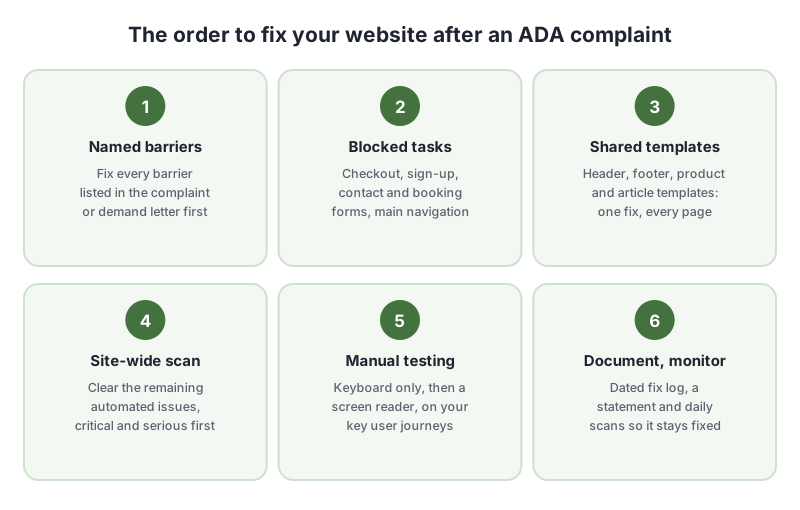
1. Fix the Barriers Named in the Complaint
Read the complaint or demand letter line by line and list every barrier it names, with the page. These are the problems the plaintiff will test again, so they come first. Most complaints describe the same handful of issues: images without text alternatives, form fields without labels, buttons a screen reader announces only as “button”, and parts of the site that cannot be reached with a keyboard.
2. Fix Anything That Stops Someone Finishing a Task
Next, fix the journeys that matter most: adding to cart and checking out, signing up, booking, and contact forms. A plaintiff’s case usually rests on being unable to complete one of these. A barrier on a blog post matters less than one on the payment step.
3. Fix Shared Templates
A problem in the header, footer, menu or product template repeats on every page that uses it. Fix it once in the template and you remove it from hundreds of pages at once. When you scan, group issues by component to find these.
4. Scan the Whole Site and Clear the Rest
Run the free ADA compliance checker on your key pages to get a list of every issue automated testing finds, ranked by severity, with the WCAG criterion and how to fix it. Clear critical and serious issues first. Then rescan to confirm each fix.
5. Test by Hand
Automated testing finds many issues but not all of them. The manual tests below are the ones that matter most in ADA website cases.
6. Document and Monitor
Keep a dated record of every fix, publish an accessibility statement, and scan the site on a schedule so new releases do not bring the problems back. More on this below.
The Most Common Problems You Will Need To Fix
The same six problems appear on most websites, and they are the ones complaints cite most often. The WebAIM Million, which tests the home pages of the top one million websites every year, found at least one detectable WCAG failure on 95.9% of home pages in 2026 (WebAIM).
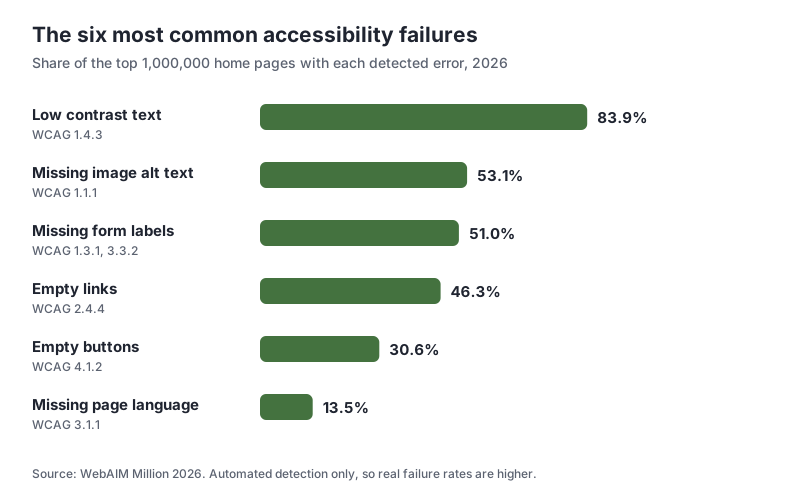
Here is how to fix each one in your code.
Missing Alt Text on Images
Every meaningful image needs a text alternative that says what it shows or does. Decorative images get an empty alt so screen readers skip them. See WCAG 1.1.1 Non-text Content.
<!-- Before: a screen reader reads the file name, or nothing -->
<img src="/img/blue-runner-42.jpg">

<!-- After -->
<img src="/img/blue-runner-42.jpg" alt="Blue running shoe, side view">

<!-- Decorative image -->
<img src="/img/divider.svg" alt="">
Form Fields Without Labels
Placeholder text is not a label. Every input needs a label that is tied to it, so a screen reader announces it when the field gets focus. See WCAG 3.3.2 Labels or Instructions.
<!-- Before -->
<input type="email" placeholder="Email">

<!-- After -->
<label for="email">Email address</label>
<input type="email" id="email" name="email" autocomplete="email">
Empty Buttons and Links
Icon-only buttons, like a cart, search or close icon, are announced as just “button” unless they have an accessible name. See WCAG 4.1.2 Name, Role, Value.
<!-- Before -->
<button class="cart"><svg>...</svg></button>

<!-- After -->
<button class="cart" aria-label="Cart, 2 items"><svg aria-hidden="true">...</svg></button>
Low Contrast Text
Normal text needs a contrast ratio of at least 4.5:1 against its background, and large text 3:1. Light gray text on white is the usual culprit, as are buttons in pale brand colors. Check your colors with the free contrast checker and see WCAG 1.4.3 Contrast (Minimum).
Missing Page Language
One attribute tells screen readers which language to read the page in. See WCAG 3.1.1 Language of Page.
<html lang="en">
Keyboard Traps and Missing Focus
Some people use only a keyboard. Every link, button, menu and form control must be reachable with Tab, usable with Enter or Space, and show a visible focus outline. Pop-ups must close with Escape and not trap focus. See WCAG 2.1.1 Keyboard.
Manual Tests To Run Before You Call the Website Fixed
A clean scan is not the same as an accessible site. Automated tools cannot tell whether alt text is accurate, whether the tab order makes sense, or whether a screen reader user can finish checkout. Run these tests on your key journeys:
- Keyboard only. Unplug the mouse and complete a purchase or form using Tab, Shift+Tab, Enter, Space and the arrow keys. Can you see where you are at every step? Our guide to keyboard accessibility testing walks through it.
- Screen reader. Use NVDA (free, Windows) or VoiceOver (built into Mac and iPhone). Go through the same journey. Are images, buttons and form errors announced in a way that makes sense?
- Zoom. Zoom the browser to 200% and check nothing is cut off or overlapping.
- Error messages. Submit forms with mistakes. Is each error described in text and linked to its field?
Read more about where automated testing stops in automated vs. manual accessibility testing. If the case is serious, consider hiring an independent accessibility auditor for this part. In Moscot, a report from an outside firm was part of the evidence the court relied on.
Third-Party Widgets, Themes and Platforms
Plaintiffs test the whole site, including tools you did not build:
- Chat, reviews, booking and payment widgets. Ask each vendor for its accessibility documentation, often called an Accessibility Conformance Report or VPAT. Replace tools that cannot be fixed.
- Themes and page builders. If the problem is in your theme, fix it in a child theme or ask the developer. Our checkers for Shopify and WordPress cover the issues that come up most often on those platforms.
- PDFs. Menus, forms and price lists posted as PDFs need to be accessible too. Check them with the PDF accessibility checker.
Do Not Use an Overlay To Fix Your Website
An overlay is a script that claims to make a site accessible automatically. It does not change your code, and it is not what a court or plaintiff tests. In 2025 the FTC ordered overlay vendor accessiBe to pay $1 million over misleading claims about what its product could do (Seyfarth Shaw). See accessiBe vs. AccessBell for the difference between an overlay and fixing the code.
Prove the Fix: Document Your Website After an ADA Lawsuit
A fix you cannot prove is worth much less in a legal dispute. Keep:
- A dated fix log. What you fixed, on which page, when, and the scan that confirmed it.
- Before and after scans. A scan from the week you were served and scans after each round of fixes.
- Manual test notes. Who tested, with which browser and screen reader, and what they found.
- An accessibility statement on your site that names the standard, gives a contact for problems and describes your ongoing work. Make one with the free accessibility statement generator.
- A monitoring plan that shows how the site will stay fixed.
Your lawyer will want this in a structured form. Our guide to the ADA compliance report for your lawyer explains what to include and how to put it together.
How AccessBell Helps You Fix Your Website and Keep It Fixed
AccessBell is built for this exact job:
- Find the issues. Scans test your pages against WCAG and show each failing element, the WCAG criterion, the severity and how to fix it, grouped so a template problem only has to be fixed once.
- Fix the common ones fast. For missing alt text, unnamed buttons and links, and the page language, type the correct text once and AccessBell writes the corrected code, or applies it with AccessBellFix while your developer makes the change in the source.
- Keep it fixed. Continuous monitoring rescans up to 500 pages per domain every day and emails you when a new serious issue appears.
- Prove it. The Compliance Vault keeps every scan and fix with dates, and exports a Legal Evidence Package for your lawyer.
No tool can make a website 100% compliant or end a lawsuit on its own, and automated testing does not replace manual testing. But it tells you exactly where to start. Run the free ADA compliance checker on the pages named in your complaint now.
Frequently Asked Questions
How long does it take to fix a website after an ADA lawsuit?
The barriers named in a complaint can often be fixed in days or a few weeks, because they tend to be common problems like missing labels and alt text. A full fix of a large site against WCAG 2.1 AA, including manual testing, usually takes longer. Settlements often give a deadline measured in months, so agree on a realistic one with your lawyer.
What standard should I fix my website to after an ADA complaint?
WCAG 2.1 Level AA is the usual benchmark. It is the standard the Department of Justice adopted for state and local government websites in 2024, and settlements commonly name WCAG 2.0 or 2.1 Level AA. Many teams now work to WCAG 2.2 AA, which includes everything in 2.1.
Will an accessibility overlay fix my website after an ADA lawsuit?
No. Overlays add a script on top of the page and do not change the underlying code that plaintiffs test. Businesses using overlays continue to be sued, and in 2025 the FTC ordered overlay vendor accessiBe to pay $1 million over misleading claims.
Does fixing my website end the ADA lawsuit?
Not on its own, but it helps in every outcome. It lowers the cost of a settlement, and in some cases, like Jones v. Moscot in 2026, a court has dismissed the federal claim as moot because the business proved the site was fixed and would stay that way.
Do I need to fix third-party tools like chat widgets and payment forms?
Plaintiffs test the whole experience, including embedded widgets, so a barrier in a chat, booking or payment tool can still be cited against you. Ask each vendor for its accessibility documentation, such as an Accessibility Conformance Report, and replace tools that cannot be made accessible.
How we reviewed this article
- Current version
First published. Failure rates from the WebAIM Million 2026 report. Settlement terms from the Target and H&R Block agreements, and the Moscot dismissal as reported by Seyfarth Shaw.